Questions
The Item management page is the nerve centre of the Question Module: this is where you find every question authored on your platform, where you filter them along several dimensions (subject, domain, status, responsible person, etc.), and from where you launch the editor to create or modify a question.
The detailed behaviour of the editor itself is covered in the Question editor chapter.
Open the page through the menu Items.
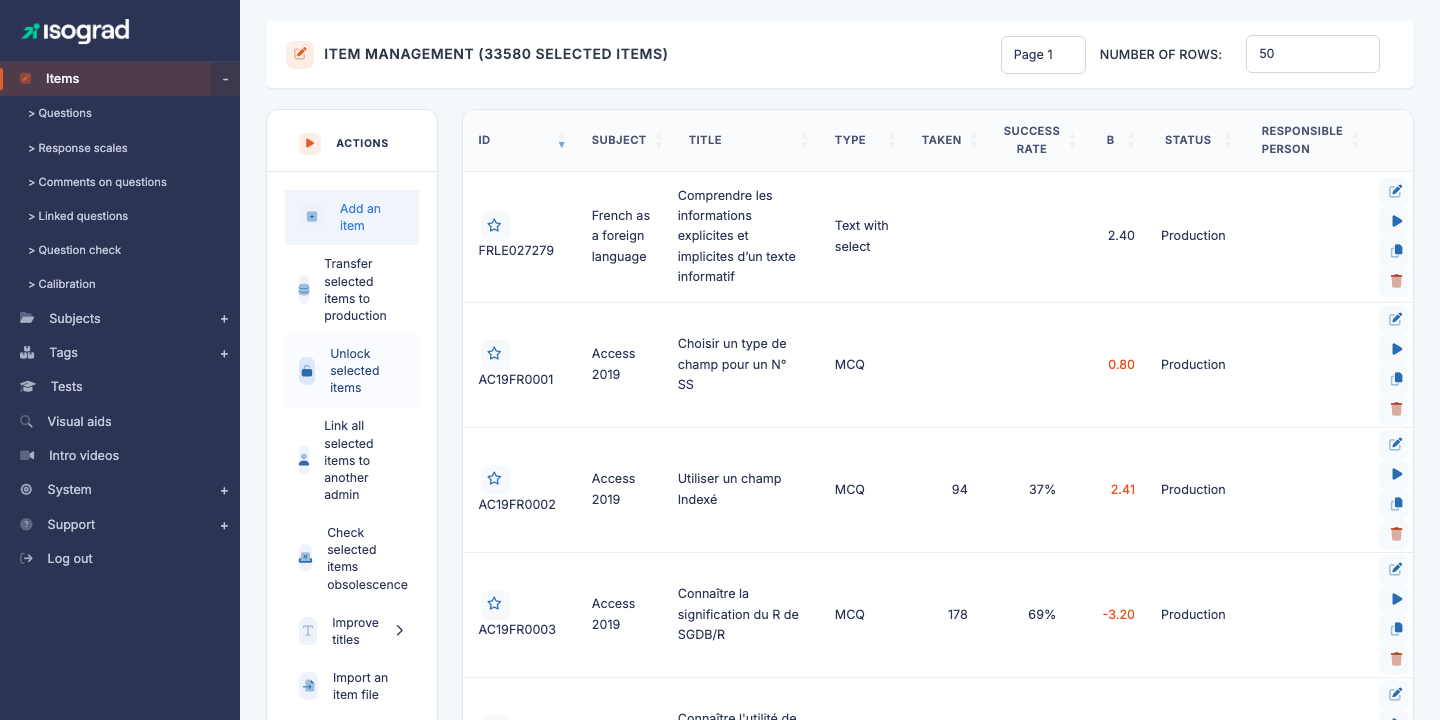
The table shows the following columns:
| Column | Content |
|---|---|
| ID | Text identifier of the question (for example S12Q0001). The ☆ before the ID is the star button. Questions in Production status are highlighted. |
| Subject | Subject the question is attached to. |
| Title | Short label of the question. |
| Type | Answer type: MCQ, Fill in the blanks, Drag-and-drop, etc. |
| Taken | Number of times the question has already been served to candidates. |
| Success rate | Success rate (%) — percentage of candidates who answered correctly. |
| B | The difficulty level set by the author: Easy, Medium or Hard. |
| Status | Editorial state of the question — see Question statuses. |
| Responsible person | Administrator in charge of the question. |
⚠️ No subject yet? — If no subject is available to you, the page opens a dialog “No subject available”: you must create at least one subject before creating questions. The dialog’s button takes you to the Subjects page.
Question statuses
Every question carries a status that drives its life cycle:
- Draft — the status of every new question (created, duplicated or imported). The question can be edited freely and is not served to candidates.
- Intermediate review statuses (for example To be verified) let you organise proofreading between authors.
- Production — the question is available to candidates in the tests that select it. A question in Production is read-only in the editor.
The status is changed from the review block at the bottom of the editor (field Status), then saved. To edit a Production question again, set its status back to Draft in that block and save; the review block stays editable on a locked question. Administrators holding the appropriate privilege can also unlock it from the editor toolbar.
Filters
The Filters panel is very comprehensive — it is the main tool for exploring a large question bank.

Basic filters
- Bookmarks — selector of saved filter combinations, see Bookmarks.
- Search — free text (on the question ID, the title, or content fragments).
- Subject — multi-select. Restrict to one or more subjects.
- Language — the question’s language.
- Question set — multi-select. The badge next to the field toggles between (OR) (questions in any selected set) and (AND) (questions in all of them).
- Answer type — MCQ, Fill in the blanks, Drag-and-drop, Manual marking, etc.
- Status — Draft, Production, etc. Lets you filter the editorial pipeline.
- Responsible person — restrict to questions under a given administrator’s responsibility.
- Include items “To be deleted” — switch; off by default.
- Flagged — switch; shows only the questions you have starred.
Domain filter
The Domain filter only appears after a single subject has been selected: it needs the subject to list its domains.
Reset
The Reset button at the top of the panel restores all filters to their default values and reloads the full table.
Bookmarks
Bookmarks let you memorise a combination of filters you use often and recall it in one click — for example “All Excel questions in Draft status assigned to me”.
Create a bookmark
- Apply the desired filters (subject, status, responsible person, etc.).
- Click the + button next to the Bookmarks selector.
- Enter a name for the bookmark (for example
Excel-Drafts-Marie). - Confirm. The bookmark appears in the selector.
Use a bookmark
In the Bookmarks selector, pick the desired bookmark. The page reloads with the memorised filters applied automatically.
Delete a bookmark
Select the bookmark, then click the − button. The bookmark is removed from the selector.
💡 Personal bookmarks — Bookmarks are specific to your administrator account: they are not shared with other authors.
Star a question
In the ID column of each row, a star icon lets you flag a question to find it again quickly later:
- Click the star to mark the question (the star switches to a filled state).
- Click again to remove the marker.
Starred questions can then be listed with the Flagged filter.
💡 Difference with bookmarks — Starring a question flags an individual question. A bookmark saves a combination of filters. The two mechanisms are complementary.
Row actions
Each row of the table presents several action buttons at the end of the row:
- Edit (pencil) — opens the question’s edit page. See Question editor.
- Preview (Play icon) — opens the question as it will appear to a candidate (statement, options, media). Lets you validate visually without starting a real test.
- Duplicate — opens a dialog where you choose the subject, the answer type and the language of the copy, then creates it and opens its edit page. The copy starts in Draft status.
- Delete — deletes the question. Shown to administrators allowed to modify the question. Refused if the question is used in the fixed question list of a test. After deletion, the list comes back with its filters, sort and page preserved.
Action bar
The action bar at the top of the page offers:
- Add an item — opens a dialog asking for the subject, the answer type and the language, then creates the question and opens the editor.
- Import an item file — see Import questions below.
- Export to YML — downloads the questions currently filtered as a YAML file (up to 500 questions; beyond 100 questions the download is a zip archive split into parts). Useful for backups or for working on questions with an AI assistant. The YAML file also carries each question’s difficulty (Easy, Medium or Hard).
- Print item list — generates a printable version of the questions ticked in the table (100 at most).
- Export to Excel — see Export to Excel.
Import questions
Import lets you create several questions in a single operation.
-
Click Import an item file in the action bar.
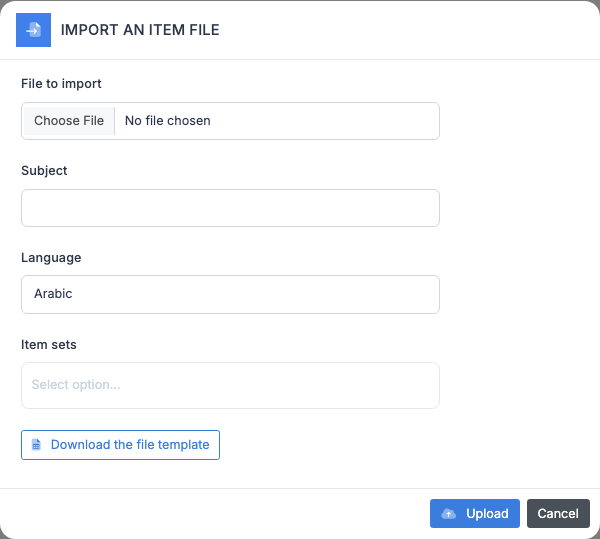
-
Fill in:
- Subject the imported questions will be attached to.
- Language of the questions.
- Question set(s) to which every imported question will be attached.
- File to import — an Excel file in the expected format. Download the file template via the link in the window: one row per multiple-choice question with its title, statement, up to ten options, the correct option numbers, its domains and its maximum score.
-
Click Import. The server processes the file, then the list is filtered on the imported subject, language and sets and reports the number of questions created.
💡 YAML files — Switch on YML file in the window to import a YAML document instead of an Excel file, for example one produced with an AI assistant following the platform’s question format. The YAML importer handles every answer type. When the document states a difficulty, it is applied to the question’s Difficulty field — only if the question is not calibrated; the difficulty of a calibrated question is never changed by an import. A question already in Production cannot be overwritten by an import.
All imported questions start in Draft status.
Export to Excel
The Export to Excel button in the action bar generates an .xlsx file listing every question currently filtered, including their domains. Handy for reference-base audits, editorial reviews, or sharing with external contributors.
Preview a question
The Preview button (Play icon) on each row opens the question as it will be presented to the candidate:
- The rendered statement (formatting, images, media).
- The answer options or the input area, depending on the question type.
- Any visual aid or reference document attached.
You can interact with the question (click options, enter text, manipulate) to verify behaviour. No result is saved — it is a dry run.
💡 When to use it? — Always preview after editing a question to check the candidate-side rendering. It is also indispensable during editorial review to validate quality before switching the status to Production.
Best practices
- Filter before acting — on a large question bank, manipulating the full list is pointless. First narrow the scope with filters (subject + status + responsible person at minimum).
- Use bookmarks for recurring views — the “drafts to finish” view consulted every week is worth its own bookmark.
- Prefer preview to opening the editor when you just want to check a question: the editor takes longer to load.
- Check before publishing — use the Check button of the editor on each question before switching it to Production: it catches the usual oversights (option not marked correct, empty statement).