Skill domains
A skill domain (often just called a domain) is a thematic breakdown within a subject: for Microsoft Excel, you will find Formatting, Calculation formulas, Pivot tables, Charts. Every question authored on the platform is attached to a domain, so candidate reports can show a score per skill area rather than just an overall score.
Open the page from the menu Tags → Domains.
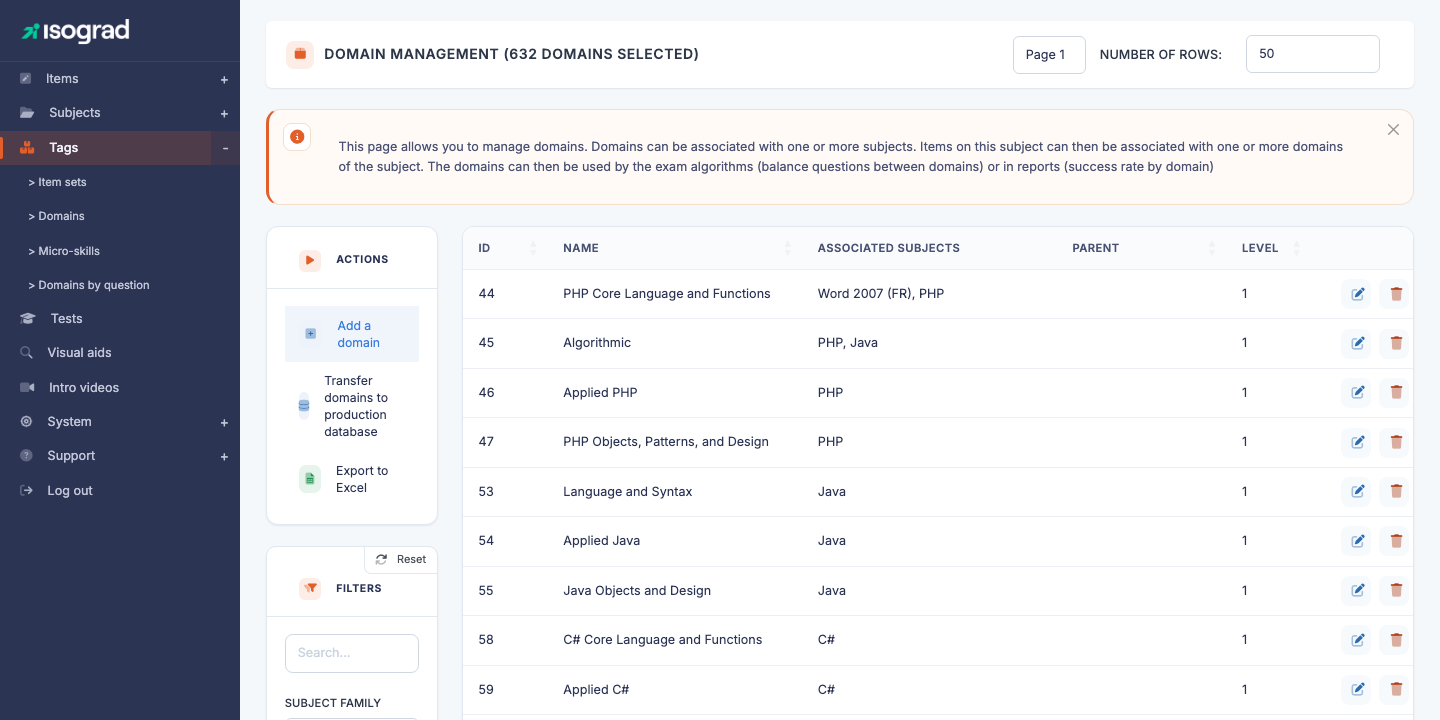
The table lists every defined domain, with its ID, its name, the subject(s) it is attached to, its parent (where applicable) and its hierarchy level (1, 2 or 3).
Domain hierarchy
A domain can be placed on up to three levels of nesting:
| Level | Role | Example |
|---|---|---|
| L1 — Main domain | The top chapter. A question can be attached directly to an L1. | Calculation formulas |
| L2 — Sub-domain | Splits the L1 into more precise sub-themes. | Mathematical functions (child of Calculation formulas) |
| L3 — Sub-sub-domain | Finest level. Optional. | SUMIF / COUNTIF (child of Mathematical functions) |
💡 When should I go down to L2 or L3? — If you expect at least 5–10 questions in a sub-theme AND that sub-theme deserves a dedicated score in the report, create an L2. For finer granularity (fewer than 5 questions), stay at the L1.
Create a domain
Creation is a two-step process: a dialog to pick the placement, then the edit form for the content.
Step 1 — Creation dialog
-
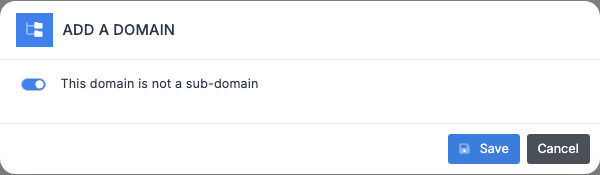
From the list, click Add a domain in the action bar.
-
The dialog opens with the switch This domain is not a sub-domain ticked by default: the domain will be created as an L1 (root).
-
To create an L1, change nothing: confirm. The domain is created and you are redirected to its edit form.
-
To create an L2 or L3, untick the switch. A first picker appears, asking for the parent domain (hierarchy level 1):
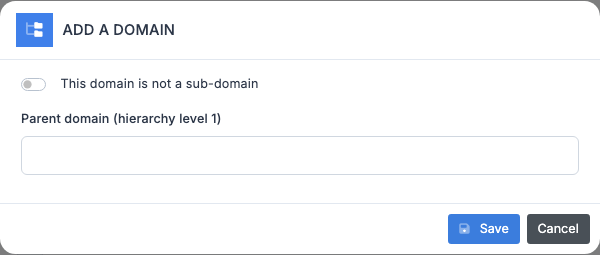
- Select the L1. If that L1 already has L2 children, a second picker appears so you can choose whether the new domain is:
- A new L2 (leave the second picker empty).
- An L3 attached to an existing L2 (pick the L2 in the second picker).
- Confirm. The domain is created at the right level, with the right parent, and you land on its edit form.
💡 Pickers and the list filter — The parent pickers only offer the domains matching the Subject family filter currently selected on the list. Leave that filter on its default value to see every domain.
Step 2 — Edit form
On the edit page that opens, fill in the tabs — see Tabs of the edit form.
Tabs of the edit form
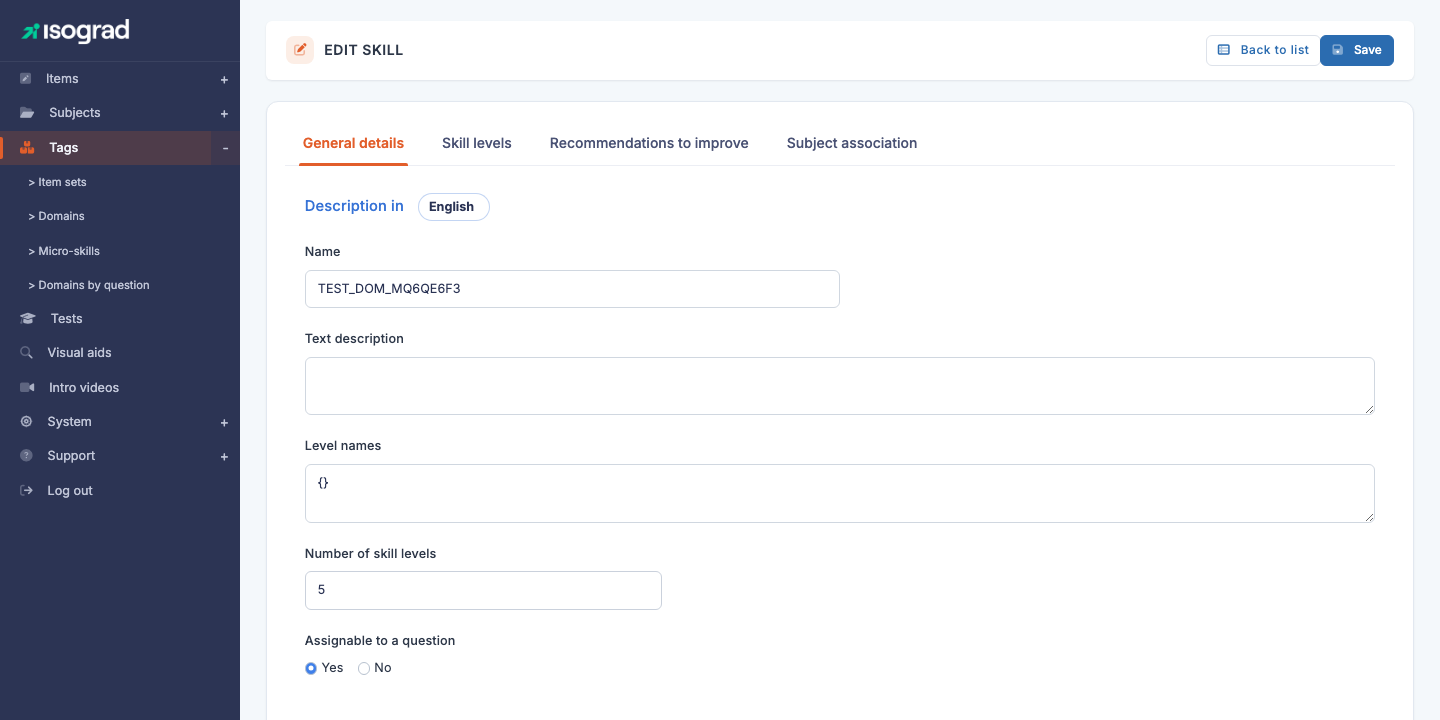
The domain edit form offers up to four tabs:
| Tab | Contents |
|---|---|
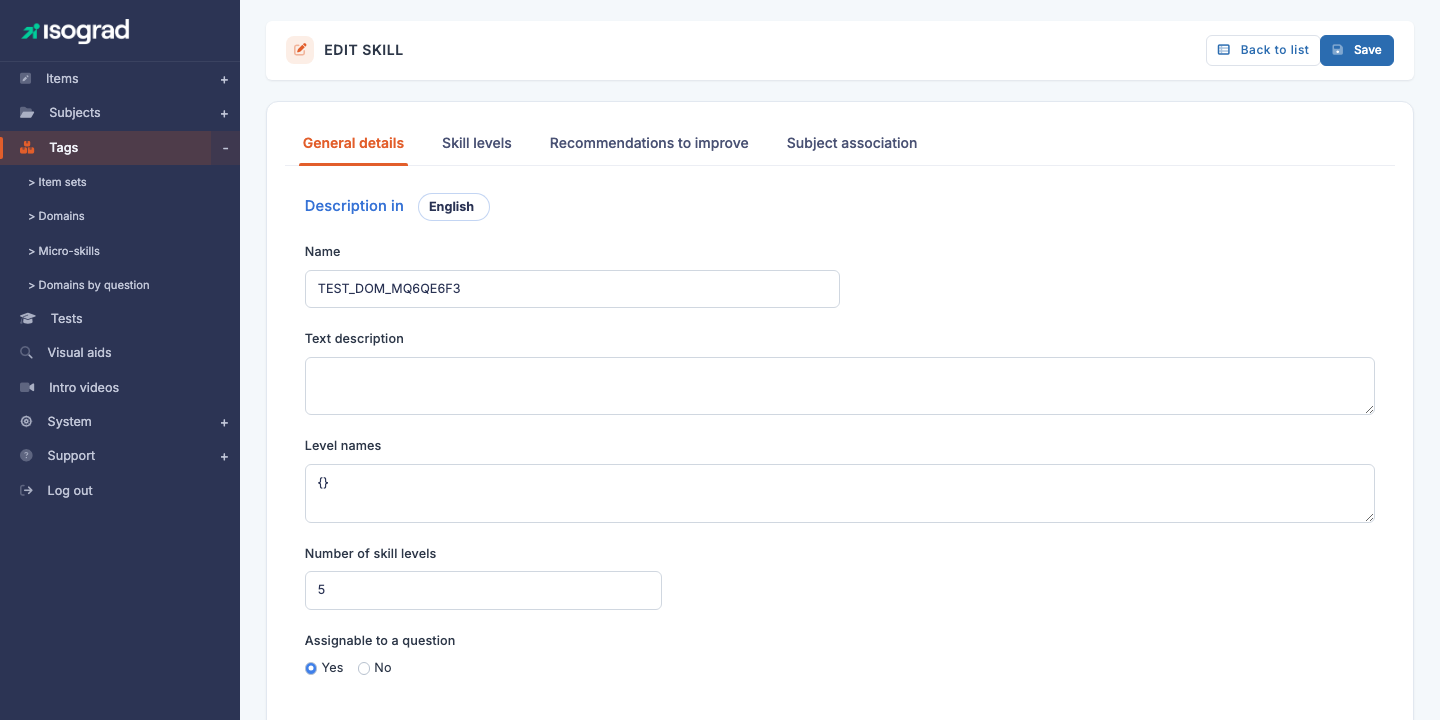
| General details | Domain name and text description (per language), number of skill levels, “Assignable to a question” flag. |
| Skill levels | Shown only if the number of levels is greater than 0. For each level and each language, a description of what a candidate at that level can do specifically on this domain. Refined relative to the subject’s global descriptions. |
| Recommendations to improve | For each level and each language, advice given to the candidate on how to progress to the next level. These texts appear in the report. Empty when the number of levels is 0. |
| Subject association | Shown for main domains (L1) only. Attach this domain to one or more subjects — see Link a domain to a subject. Sub-domains inherit the subjects of their main domain. |
Fields in the “General details” tab
The “Description in” language picker at the top switches between the report languages. The fields:
- Name — short label for the domain, shown in reports and lists. Required in the current language.
- Text description — free paragraph detailing the scope of the domain. Acts as internal documentation for question authors.
- Parent domain and Master domain — read-only reminders shown on sub-domains.
- Number of skill levels — how many mastery tiers are defined on this domain (0 to 8). 0 means “no levels specific to this domain” (the subject’s overall score is enough). 3 to 5 is typical for domains that warrant fine-grained analysis.
- Assignable to a question (Yes / No) — if Yes, the domain can be selected as the attachment of a question, and it appears in the candidate report’s skill map. If No, the domain only serves as an editorial grouping for its children (an L1 “umbrella” that does not directly carry questions, for example).
💡 Reactivity — Changing the value of the number of skill levels instantly updates the Skill levels and Recommendations tabs: the matching fields appear or disappear without reloading the page.
💡 Languages — The language picker of the domain form lists the platform’s report languages. You only need to fill in the languages actually used by your candidates.
Link a domain to a subject
A domain is useful only if it is linked to at least one subject. The link is set up via the Subject association tab on the form of a main domain:
The tab shows two side-by-side lists:
- All subjects — every subject not linked to this domain.
- Associated subjects — the subjects currently attached.
To link: drag and drop a subject from All subjects to Associated subjects. The reverse to unlink. Click Save at the top right to persist.
💡 Filter the list — If you have many subjects, use the filter field above the lists to quickly find the subject you want.
⚠️ Unlinking a domain that has questions — If you unlink a subject from a domain while questions exist on that pair, those questions lose their domain in the report. Unlink only if you intend to reassign those questions immediately afterwards.
Associated questions
On a domain’s form, the Display items associated with this domain link opens the Questions page in a new tab, pre-filtered on that domain. Useful to:
- Check how many questions have been authored per domain.
- Identify domains that are thin on questions and would benefit from more authoring.
- Move quickly between the pedagogical definition (the domain form) and the content (the questions).
Filters
The Filters panel offers:
- Search — free text on the domain’s ID or name.
- Subject family — a technical grouping of subjects. On your platform every subject belongs to the same family, so this filter can stay on its default value.
Sorting is available on each column by clicking the header.
Delete a domain
- On the domain’s row, click the Delete icon.
- Confirm via the Delete button on the page that opens.
⚠️ Domain with questions — A domain that contains at least one question cannot be deleted. The platform refuses the operation with the message “You cannot delete a domain associated with Items”. Before deletion, transfer or delete the questions attached to it (use the Display items associated with this domain link to find them).
💡 L2/L3 child domains — Delete sub-domains before their parent (bottom-up), otherwise the children lose their attachment.
Export the list
The Export to Excel button in the action bar generates an .xlsx file listing every domain currently filtered. Useful for audits of the pedagogical reference framework or for sharing the list with external contributors.