Answer scales
An answer scale is a reusable set of answer options that you can attach to a question: “Never / Rarely / Sometimes / Often / Always”, “Strongly disagree / Somewhat disagree / Somewhat agree / Strongly agree”, or any other reference set you want to question a candidate against.
Scales let you standardise the answer options of a family of questions without retyping the labels each time. They are especially useful for behavioural questionnaires (Likert scales), self-assessments, and any survey where the same list of choices recurs.
Open the page through the menu Items → Response scales.
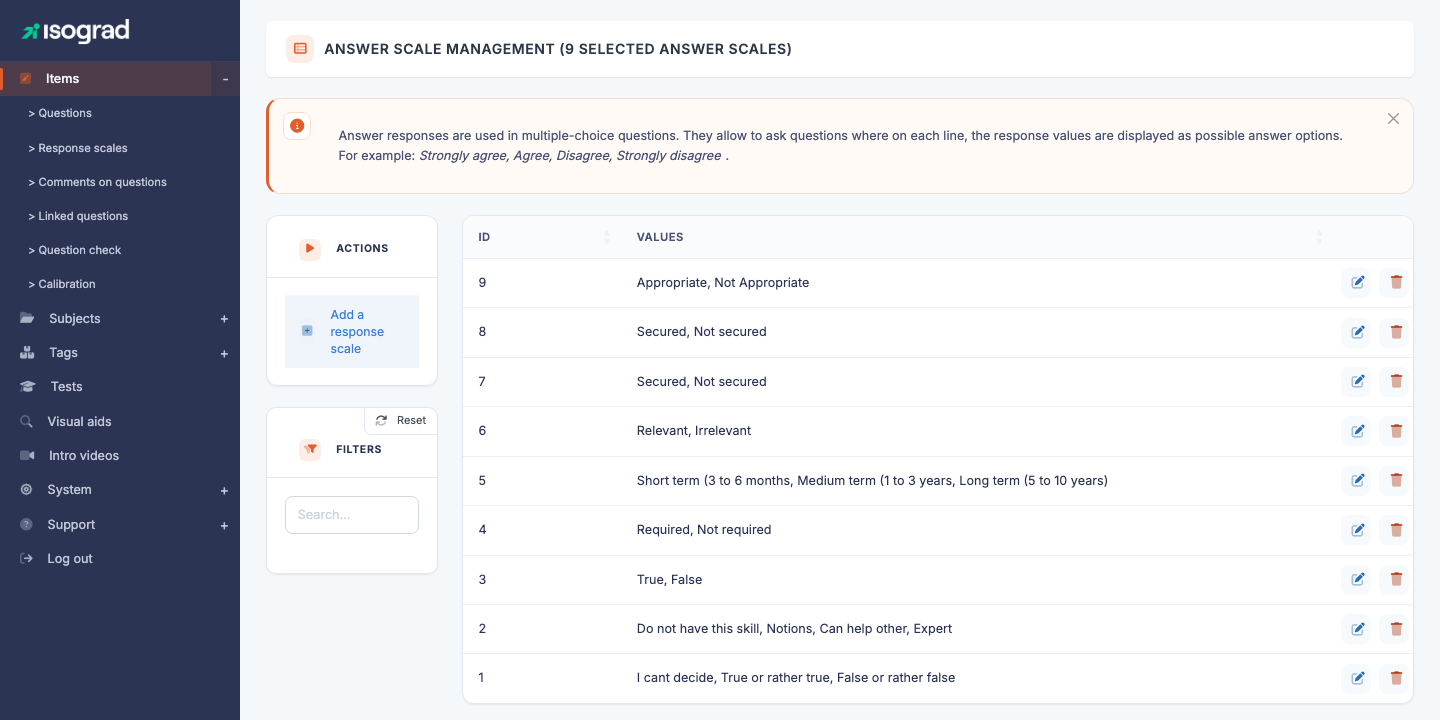
The table lists every defined scale, with its identifier and the list of its values (the options in order, in your interface language).
Create a scale
Creation is performed entirely inside a dialog — there is no dedicated edit page.
-
From the Answer scales management page, click Add a response scale in the action bar.
-
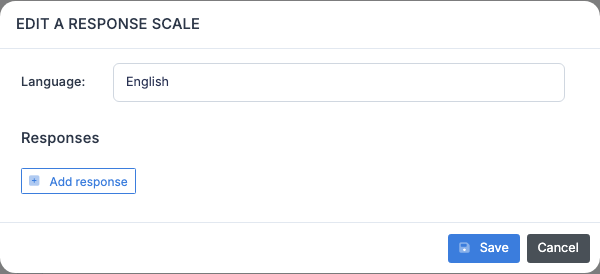
The “Edit a response scale” dialog shows:
- A Language selector at the top (switch between the languages of your account).
- A Responses area: each response has a label per language, preceded by a reorder handle (≡) and a position number, and followed by a delete icon.
- An Add response button to extend the list.
-
Enter the values in the desired order, in the displayed language. Then switch to the other languages to translate each label: adding a value adds it to every language at once.
-
Click Save. The scale appears immediately in the list.
💡 Minimum number of options — A scale must have at least two values filled in, in at least one language, to be valid (a scale with a single value makes no sense). The platform blocks saving below this threshold.
Reorder options
The order of options determines the order of presentation to the candidate. To change it:
- Drag and drop an option using the handle (≡) at the start of its row. The position numbers update immediately.
- The order is persisted on save.
⚠️ Consistent ordering — The order applies to all languages simultaneously: you cannot have one order in FR and another in EN. If a translation requires a culturally different order (which is rare), create two separate scales.
Multilingual entry
The language selector at the top of the dialog lets you enter labels in each language of your account. Recommendations:
- Enter the source language first, then translate to the other languages.
- Fill every active language before first production rollout. A missing language will display an empty label to the candidate, which is confusing.
- The number of options is the same in every language: adding or removing a value applies to all languages at once.
Edit a scale
- On the scale’s row, click the Edit icon (pencil).
-
The same dialog as for creation opens, pre-filled with the current values.
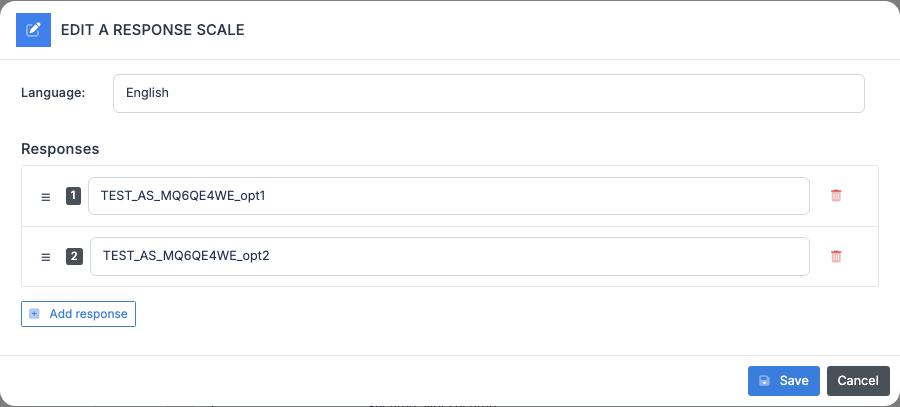
- Adjust labels, add or remove options, reorder them.
- Save.
⚠️ Editing a scale that is in use — If the scale is referenced by questions, your change affects every one of those questions. Be careful: changing the order of options on an already-used scale can disturb the analysis of historical results (an option that was in position 3 suddenly becomes position 5, which can shift statistics).
Filters
The Filters panel offers:
- Search — free text on the ID or on the option values. Useful to find the scale that contains “Often” among dozens of reference scales.
Column sorting is available by clicking the headers.
Delete a scale
- On the scale’s row, click the Delete icon.
- Confirm in the dialog that appears.
⚠️ Scale in use — A scale referenced by at least one question cannot be deleted. The platform refuses the operation with a message listing the identifiers of the questions concerned. To delete a widely used scale:
- Open the questions listed in the message from the Questions page.
- Edit those questions to point to another scale, or delete them.
- Retry the deletion.
Best practices
- One scale, one business use case — resist the temptation to merge several different meanings into a single scale. An “Excel usage frequency” scale and a “comfort level with Excel” scale must remain separate, even if the labels look similar.
- Odd number of options for Likert scales where you want to offer a neutral position to the candidate (typically 5 or 7 levels). Prefer an even number (4 or 6) if you want to force the candidate to take a side.
- Reuse rather than duplicate — before creating a new scale, check whether an equivalent scale already exists. Filter by keyword to explore the reference set before adding content.