Tests
A test is the final assembly that becomes passable by a candidate. It is the junction point where you take a selection of questions from your question bank, choose the question order, set parameters (duration, navigation, feedback, etc.), and obtain a deliverable that your account administrators can book for candidates.
Every test booked for a candidate on the platform is defined by one of these tests.
Open the page through the menu Tests. It is shown to administrators holding the test-reading privilege.
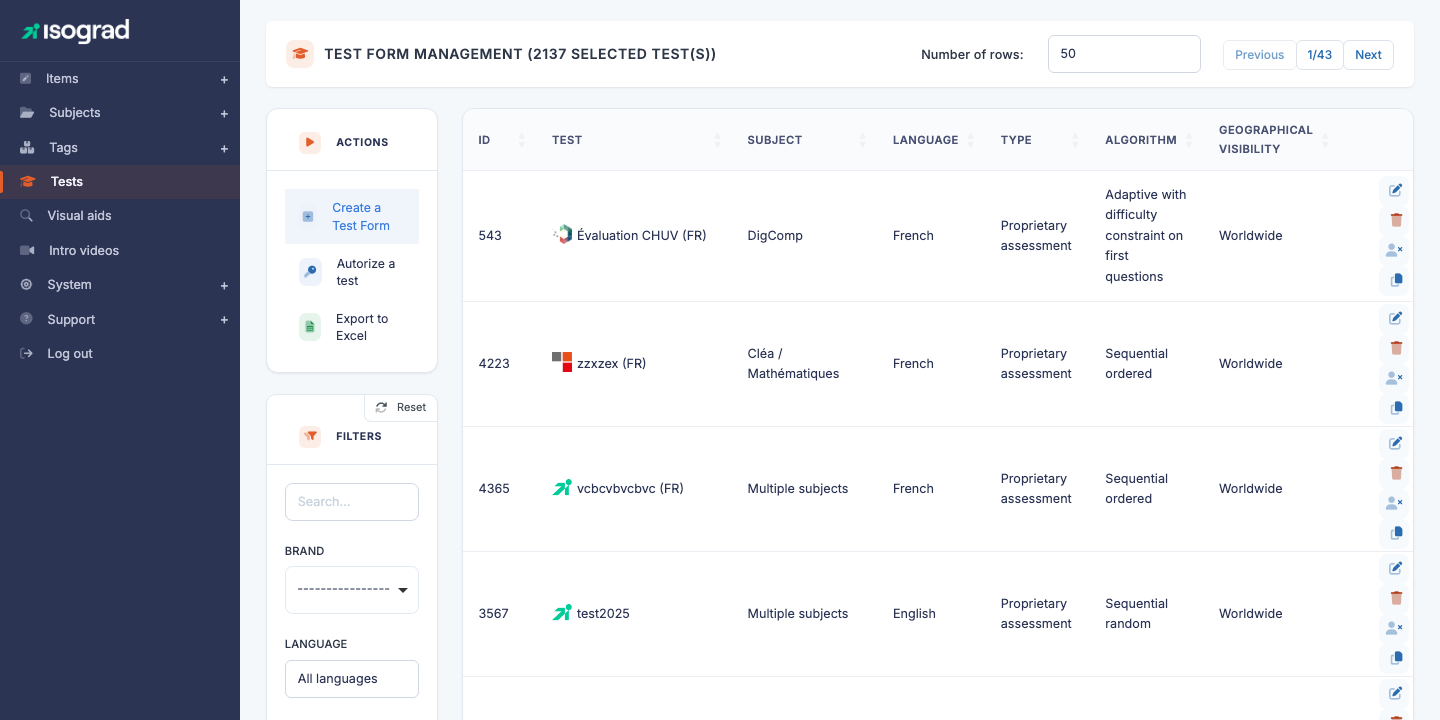
The table (titled Test form management) lists every test, with its ID, name, subject, language, type and algorithm. When a usage period is set in the filters, an extra column shows the number of takes over that period.
Administrators of the main account see every test. Administrators of a sub-account (or logged in as an alias on an account) only see the tests linked to their own account — see Authorise a test / Remove access.
Concepts
Question order
A test either fixes the exact list of questions, or draws them at random at the start of each session. This is the Question order setting of the test:
- Ordered — you pick the questions one by one; every candidate gets the same questions in the same order.
- Randomized — you set the number of questions and the pool to draw from; each candidate gets a different order.
Only Production questions are served
Whatever the order, a test can only serve questions whose status is Production: the question picker only lists those, and random draws ignore the others. Put your questions into Production before building the test (see the Question editor).
Create a test
Creation goes through a minimal dialog, followed by the edit page.
-
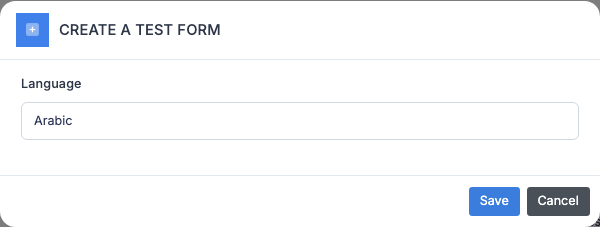
From the Test form management page, click Create a Test Form in the action bar.
-
Choose the language presented to the candidate.
-
Click Save. The platform creates the test and takes you to its edit page.
Tabs of the edit page
The edit page offers four tabs. A help message at the top reminds you that the test is built from the questions of your bank.
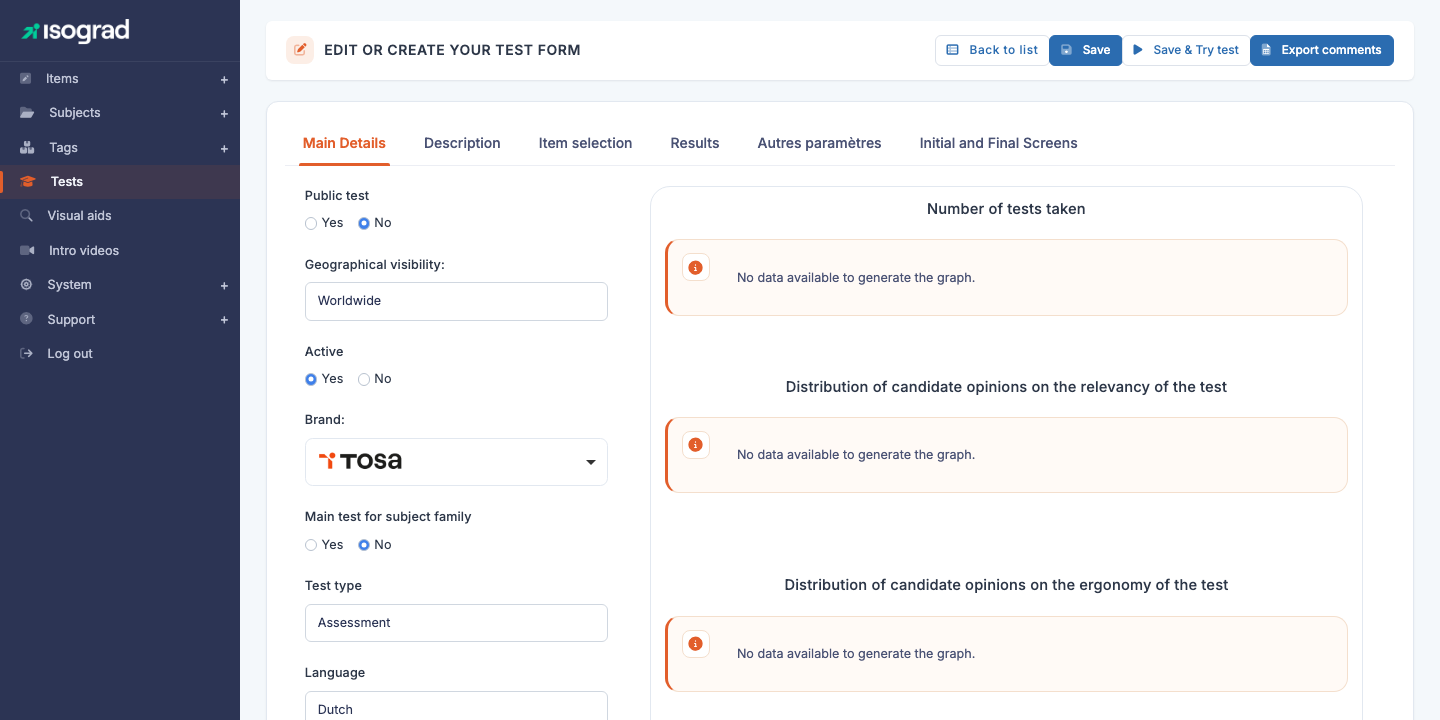
| Tab | Content |
|---|---|
| Main Details | Everything that defines the test: status, name and description, question order, question selection, candidate-side options. |
| Time Management | The allotted time. |
| Initial and Final Screens & Analysis Prompt | The intro and feedback texts shown to the candidate, and the instructions for the AI analysis of results. |
| Statistics | Usage chart over the last months and, once enough results exist, a reliability indicator of the test. |
“Main Details” tab
- Created by — the administrator who created the test.
- Active (Yes / No) — an inactive test can no longer be booked for new candidates but stays available for the results already recorded. This is how you retire a test.
- Name and description — one block per language of your account. The description is shown to administrators when they book the test.
- Needs proctoring — whether the test must be taken under remote proctoring.
- Has improved accessibility — variant of the interface designed for visually impaired candidates.
- Question order — Ordered or Randomized (see Concepts).
- Number of items — for a randomized test, how many questions each candidate receives.
- Subject, Item sets, Domains — for a randomized test, the pool to draw from: the questions of the selected item sets, and optionally a number of questions per domain (written as
domain id:number, separated by spaces). - Items selection — the list of questions of the test. Click Choose to open the question picker: filter by subject, domain, difficulty, item set or free text, tick the questions and confirm. For an ordered test, drag the rows to set the order. Up to 1 000 questions can be selected.
- Result type — how the score is computed and presented (for example number of correct answers or a percentage).
- Navigate between items — lets the candidate move back and forth between questions instead of answering them in sequence.
- Show item list — displays the list of questions to the candidate during the test.
- Display correct answer after each question — immediate feedback mode.
- Display the “Give up” button — lets the candidate skip a question.
- Display tutorial button on each question — gives access to the tutorial written by the author.
- Display the button to listen to the question — text-to-speech of the statement.
💡 Suggested duration — Once the questions are chosen, the Time Management tab shows a suggested duration computed from the allotted time of each selected question.
“Time Management” tab
- Allotted time — in minutes. Leave empty to impose no time limit.
“Initial and Final Screens & Analysis Prompt” tab
- Intro screen text — message shown before the first question.
- Feedback text — message shown when the test is over. A default text is proposed when the test is created.
- Version selection dialog text — optional, for tests that let the candidate choose between several versions.
- Instructions for the AI analysis of the results — optional guidance used when an administrator requests an AI analysis of a candidate’s results.
Header buttons
- Save — saves the whole form.
- Save & Try test — saves, then launches the test for yourself as a candidate would see it.
- Export comments — downloads the comments left by candidates on the questions of this test.
- AI test review — asks the AI for a review of the test design (coverage, balance, wording).
Edit a test
- On the test’s row, click the Edit icon (pencil).
- Navigate between the tabs and adjust the desired values.
- Click Save at the top right.
⚠️ Tests in use — Editing a test already booked for candidates can affect their experience. For deep changes (question list, order), prefer creating a new test or duplicating the existing one, and set the old one to inactive.
Duplicate a test
Duplication is the fastest tool for creating a variant of an existing test (another language, a local adjustment, a shorter version).
- On the row of the test to duplicate, click the Duplicate icon.
- The platform creates a copy and takes you to its edit page.
- Rename the copy to avoid confusion: it carries the same name as the original.
💡 Duplication preserves — the question list, the question order, the parameters, the descriptions, the intro and feedback messages. The questions themselves are shared, not copied.
Authorise a test / Remove access
Administrators of the main account decide which tests are linked to each account: a sub-account administrator only sees, and can only book, the tests linked to their account.
To link a test to the current account:
- From the Test form management page, click Authorise a test in the action bar.
- In the Authorise a test for this account window, enter the Test identifier (the ID column of the list).
- Click Save. A message confirms that the test has been added to the account and the list reloads.
To remove a test from an account, click the Remove access icon (key) on the test’s row: it disappears from the list for that account’s administrators.
💡 Tests already available to everyone — Some tests are available to every account of the platform: the window says so if you try to authorise one, and the Remove access icon does not appear on their row.
Delete a test
- On the test’s row, click the Delete icon.
- Confirm on the page that opens.
⚠️ Prefer deactivation — Deleting a test removes its definition for good. For a test that has already been taken, set Active to No on the Main Details tab instead: the test can no longer be booked but the historical results stay readable.
Filters
The Filters panel offers:
- Search — free text on the name or the ID.
- Language — by test language.
- Subject — by associated subject.
- Include inactive tests — switch; off by default.
- Display usage from / to — a period; when set, the table shows the number of takes of each test over that period.
Column sorting is available by clicking the headers. On a sub-account, the filters apply to the tests linked to the account only.
Export the list
The Export to Excel button in the action bar generates an .xlsx file listing every test currently filtered. Valuable for periodic test catalogue reviews.