Question editor
The question editor is the most heavily used tool in the Question Module — this is where you write statements, define answer options, add illustrations and visual aids, and tag each question on the skills map. Any administrator producing content for the platform spends the majority of their time on this page.
Open the editor through the Edit icon (pencil) on a question’s row in the Questions page, or by clicking Add a question on that page.
💡 Answer type and interface — The editor adapts its interface to the question’s answer type. An MCQ question shows an answer-option input area; a Drag-and-drop question gets an editor for draggable items; a Manual-marking question gets a grading grid. This chapter covers the common organisation and the per-type specifics.
Overview
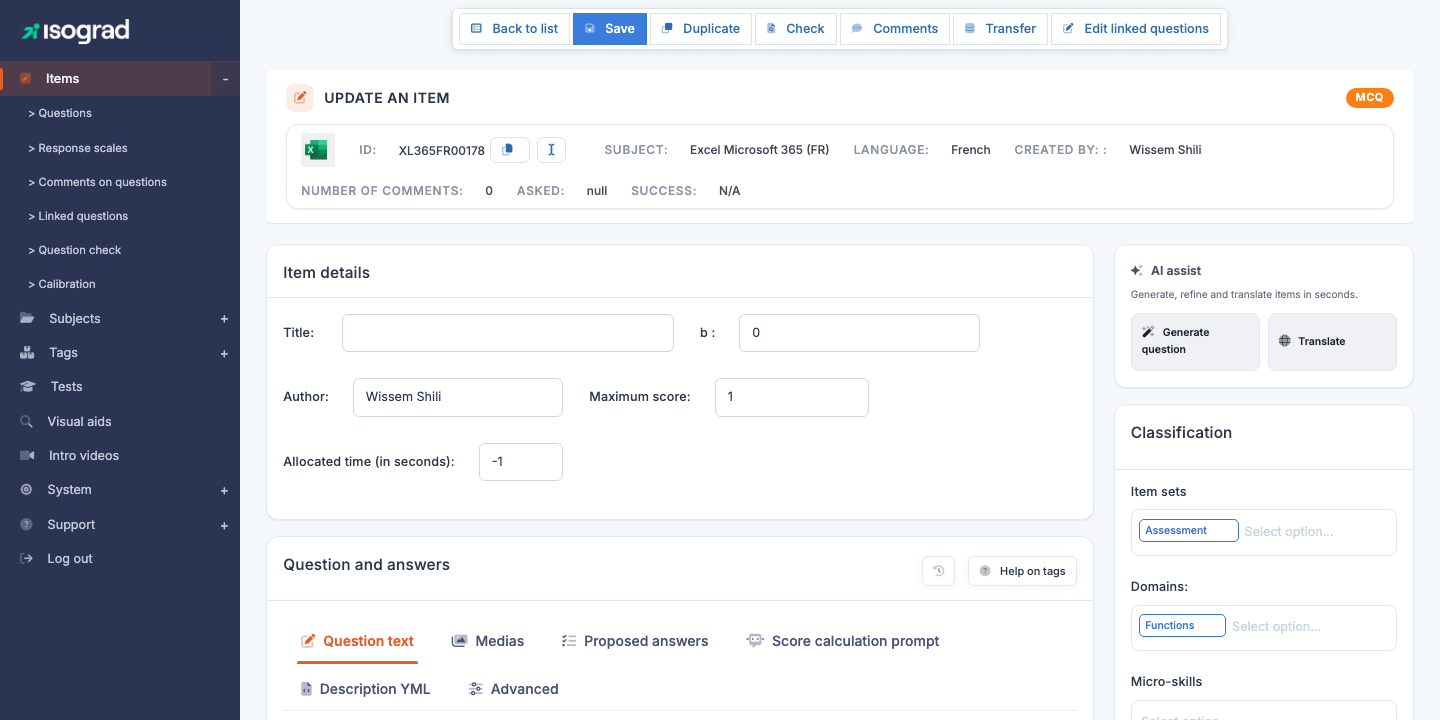
The edit page (titled Update an item) is organised into several zones, with a badge at the top showing the answer type of the current question (MCQ, Click in area, etc.):
- Toolbar (above the header):
- Previous / Next — move to the previous or next question of the current list without going back through it.
- Back to list — return to the Questions page, which comes back with its filters, sort and page preserved.
- Save — saves all modifications.
- Duplicate — creates a copy of the question.
- Check — runs the editorial diagnostic on this question (empty title, missing statement, options not marked correct, etc.).
- Comments — opens the list of comments left by candidates on this question during tests; the Delete (trash) icon at the end of a row removes a comment.
- Preview — opens the question as a candidate will see it.
- Unlock — shown on a question in Production status to administrators holding the appropriate privilege; puts the question back to Draft in one click (see Save, preview, delete).
- Identity banner:
- Subject icon + ID (for example
S12Q0042) with a Copy button. - Subject, Language, Creator (the administrator who created the question).
- Number of comments, Asked (number of takes), Success (success rate).
- Subject icon + ID (for example
- “Item details” section:
- Title.
- Difficulty — Easy, Medium or Hard, set by the author. Shown in the question list and used when composing tests.
- Author (the person credited for the question, distinct from the creator shown in the banner).
- Maximum score (defaults to 1).
- Allocated time (in seconds;
-1means “no limit”).
-
“Question and answers” section — the heart of editing, organised into tabs (see Editing tabs).
-
“Tutorial” section — the explanation shown to the candidate after answering (see Tutorial).
-
Review block — the question’s Status and Responsible person, plus a file and comments for proofreading exchanges between authors. Comments are split into two tabs: Comments (current) and Archived comments.
-
“AI assist” sidebar on the right — AI generation buttons (see AI generation).
- “Classification” sidebar on the right — question sets and domains the question is attached to.
💡 Everything on a single page — Unlike other platform entities, the editor does not navigate between several pages. All edits are made here and saved in one click via the Save button at the top.
Editing tabs
The Question and answers section is organised into tabs specific to the question’s content:
| Tab | Content |
|---|---|
| Question text | The text shown to the candidate (rich text editor). |
| Medias | Reference documents, media files and audio generation attached to the statement. To generate an audio file, type the text to read and pick a voice among those available for the question’s language. |
| Proposed answers (label varies by type) | Answer options or type-specific settings — see per-type sections. |
| Score-calculation prompt | For AI-graded questions: instructions given to the AI to compute the score. |
| Advanced | Advanced options: Mandatory answer in tests with navigation, and for free-text questions Lock copy/paste and selection. |
Two help buttons at the top right of this section:
- History (clock icon) — change history of the question.
- Tag help — reference for the formatting tags available in the editor.
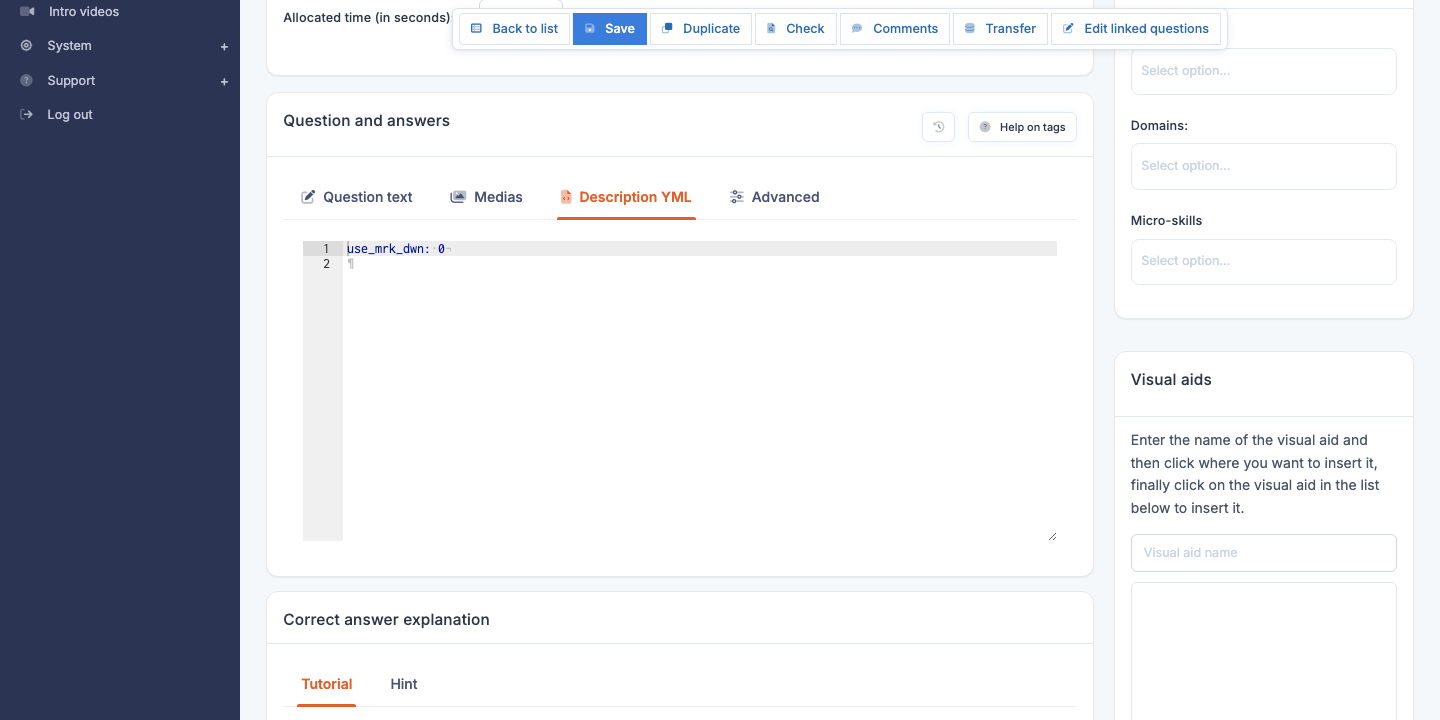
💡 YML description tab — A raw YAML view of the question exists for a few answer types (for example Sortable). For the other types it is not shown: use Export to YML on the Questions page to obtain the YAML of your questions.
Common fields (title, text, illustration, tutorial)
Metadata
- Subject — subject the question is attached to. Set at creation.
- Domains — assessed skill domain(s), in the Classification panel. Used for the candidate report’s skill map.
- Item sets — the question sets the question belongs to (see Question sets), in the Classification panel.
- Status — Draft, Production, etc., in the review block. Controls whether candidates can be served the question.
- Responsible person — administrator in charge of the question, in the review block.
- Language — set at creation, not editable. One question = one language.
Title
The Title is a short label that appears in the Title column of the list and in skill reports: it represents the skill tested by the question. Not shown to the candidate. Choose a descriptive and unique title: “Compute a sum” is better than “Excel - question 17”.
Question text
The Text is the statement shown to the candidate. You enter it in a rich editor that supports:
- Markdown — bold, italic, lists, links, code blocks. Rendering is immediate in the preview.
- HTML formatting for advanced cases (tables, specific CSS classes).
- Visual aid insertion via the dedicated search box (see Visual aids).
- Direct illustration insertion (image on the question — see Illustration).
💡 Markdown vs HTML — Prefer Markdown for everyday writing. Reserve HTML for cases where Markdown is not enough (complex tables, specific formatting).
Illustration
An illustration is an image attached directly to the question (as opposed to a visual aid, which can be shared across multiple questions). It is the main image accompanying the statement.
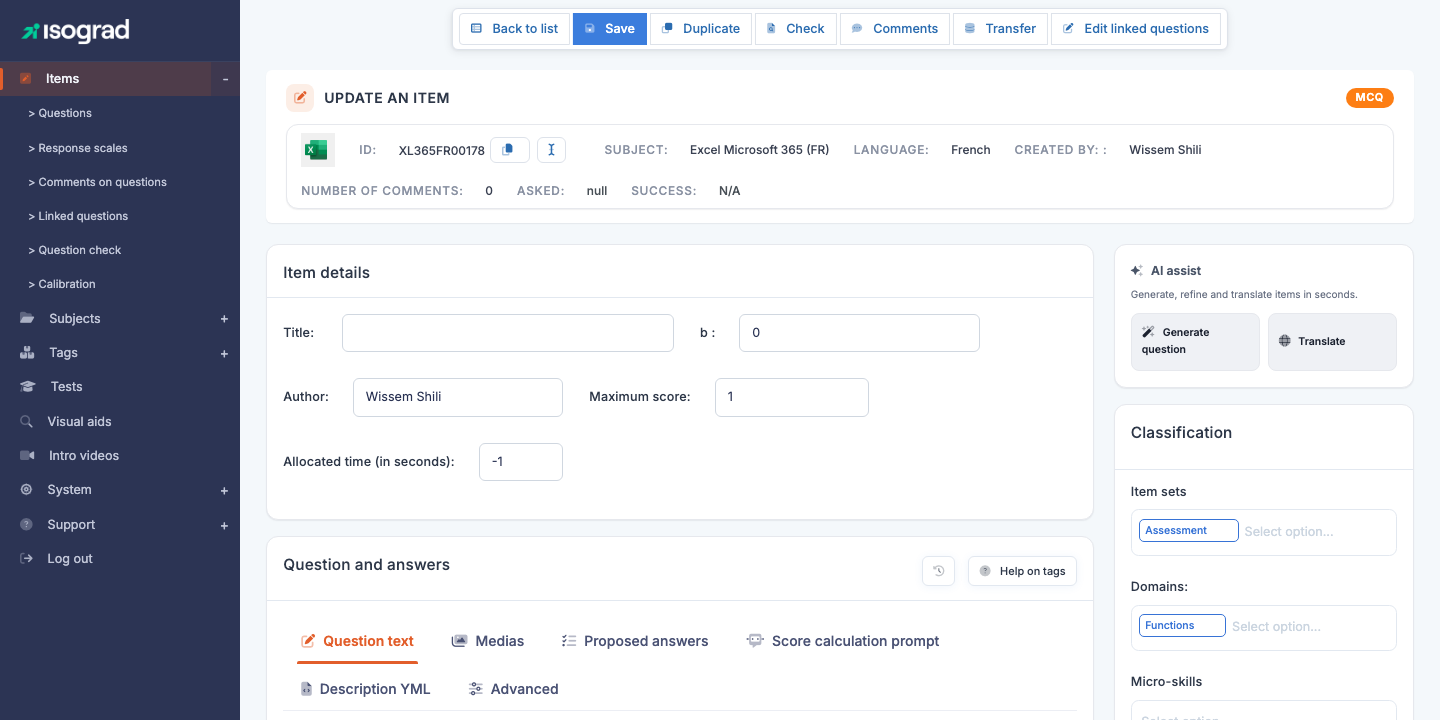
- To add an illustration, click the upload button and pick your file (PNG/JPG/SVG).
- To change the alternative text (alt text), type it in the dedicated field — important for accessibility and screen readers.
- To remove the illustration, click the Delete media button.
💡 Illustration or visual aid? — An illustration is specific to the question, ideal for an image that will never be reused. A visual aid is shared across multiple questions, ideal for an Excel table or a source-code snippet shared across 10 questions of the same module.
Tutorial
The Tutorial section holds the explanation shown to the candidate after they answer, in review mode: a hint and an explanation of the correct answer. This is the pedagogical moment: explain why the correct answer is correct, how to identify it, and which common mistake to avoid. Same format as the text.
Visual aids
You can insert one or more visual aids into the text or the answers. See the Visual aids chapter for creation and management. In the question editor:
- Type at least three characters of the visual aid’s name in the visual aid search box on the right.
- Pick the visual aid from the results, filtered by the question’s subject and language.
- The reference tag is inserted in the text. The candidate-side rendering will show the full image or document.
Three variants exist:
- Reference document — a document embedded in the question, or offered as a link (enable Display PDF reference documents as a link).
- Visual aid shown on click — an image that opens under a magnifying glass (in the statement or in the answers).
- Visual aid shown in the text — an image presented as an inset, generally smaller, typically for keyboard or interface questions.
AI generation
The editor offers an AI assist sidebar on the right of the page. On a newly created question it holds two buttons:
- Generate question — proposes a full statement (text, answer options, correct answer) from the question’s metadata (subject, domain, title). Offered for the answer types that support generation. Generation also fills in the Difficulty field with the level suggested by the AI (unless the question is calibrated); you can change it before saving.
- Translate — translates the question’s content into another language, useful to quickly produce several linguistic versions of a subject.
Once the question has been saved a first time, more buttons appear:
- Improve question — rephrases and tightens the existing statement and options.
- Generate a title — proposes a title from the statement.
- Obsolescence — assesses whether the question’s content is likely to be outdated.
- Generate tutorial — drafts the explanation shown to the candidate after answering.
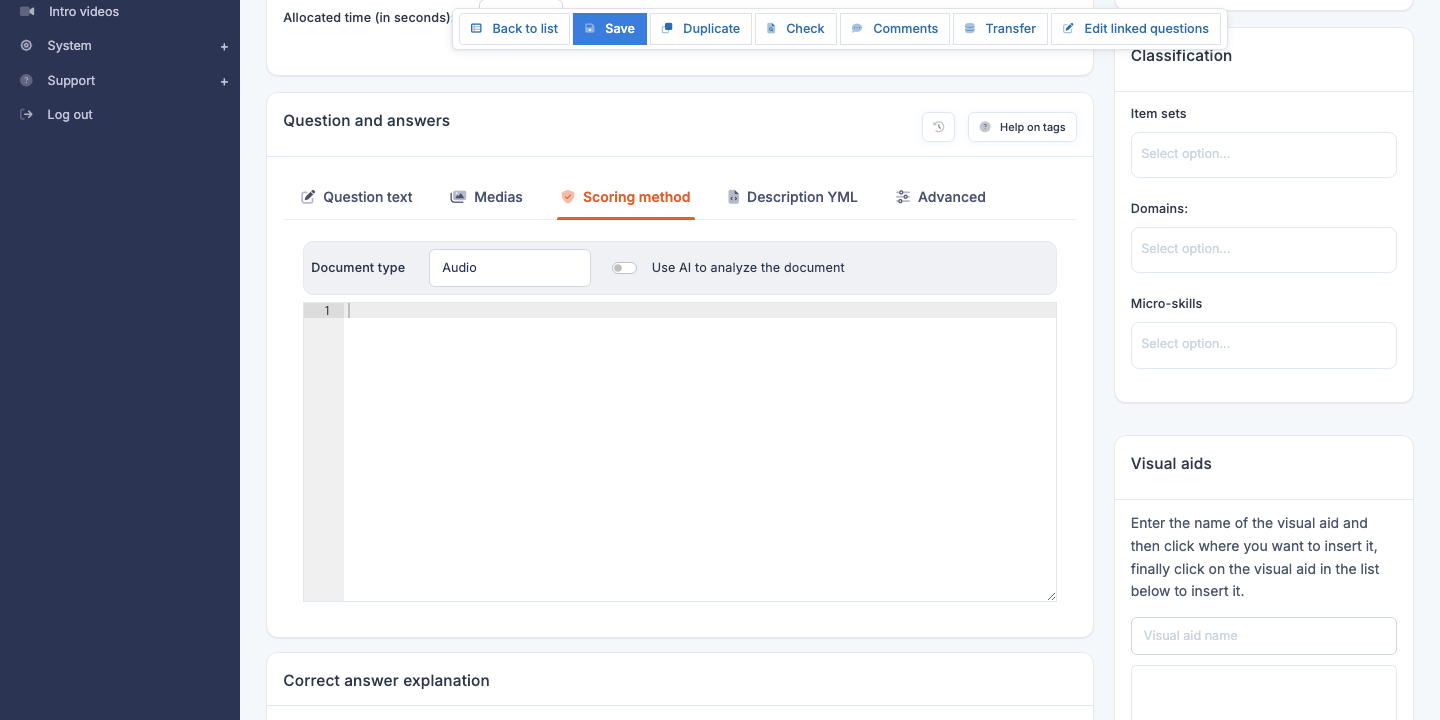
For AI-graded uploads, a Generate code button drafts the verification code from the statement.
⚠️ AI proposes, you decide — Generated content is a starting point, not a final deliverable. Always proofread and correct before saving: the AI output replaces the fields on screen but is not saved until you click Save. Quality depends on the AI model chosen in the System → Select an AI menu.
Answer types — overview
The platform offers a range of answer types, grouped into families. The exact list offered when you create a question depends on your platform configuration.
| Family | Types | Use case |
|---|---|---|
| Multiple choice | Text MCQ, Answer scale | Classic knowledge assessment. |
| Answer selection | Fill in the blanks with dropdown lists | When free text would be ambiguous to grade. |
| Interactive questions | Drag-and-drop, Sortable, Link, Click in area | Interactive and engaging tests. |
| Typed answers | Fill in the blanks with automatic or AI grading, Dictation, Typed answers with manual marking | Knowledge checks and case studies. |
| Document or audio grading | Upload with automatic grading | File submission graded by AI. |
| Specific | Transition page | Edge cases (a page between two parts of a test). |
The following sections detail the most common types.
Multiple-choice (MCQ)
The Text MCQ type is the most used type on the platform. The candidate sees a question and several answer options, of which one or more are correct.
Editing the options
The MCQ editor exposes a list of options, each with:
- A proposal text field.
- A Correct checkbox indicating whether the option is a correct answer.
- A Delete this option button.
An Add an option button at the bottom of the list lets you grow the number of options. You can have between 2 and 8 options per question (5 is the recommended standard).
💡 One or several correct answers? — Tick only one Correct checkbox for a single-choice MCQ (the candidate can only pick one answer). Tick several checkboxes for a multi-choice MCQ (the candidate can pick several, and must find them all to get the question right). Or use one among n (several options are correct, but the candidate only needs to pick one of them for the answer to count as correct).
Order of options
By default, the options are shown to the candidate in random order on each take. If you want to force a fixed order (for example for a logic question where the order of choices carries meaning), tick the option Do not shuffle the answers in the question’s advanced options.
Scale (Likert, T/F)
The Scale type presents the candidate with a question paired with a reusable answer scale — for example a Likert scale “Strongly disagree / Somewhat disagree / Somewhat agree / Strongly agree”, or a simple True/False scale.
Editing
- Select the scale in the dropdown (see Answer scales to manage available scales).
- The editor shows the selected scale’s options and lets you tick the correct answer (a single checkbox ticked). To add a new scale, go to the menu Items → Response scales, then Add a response scale.
💡 For questions where there is no right or wrong answer, tick the option No notion of correct answer (form, personality test…).
Fill in the blanks
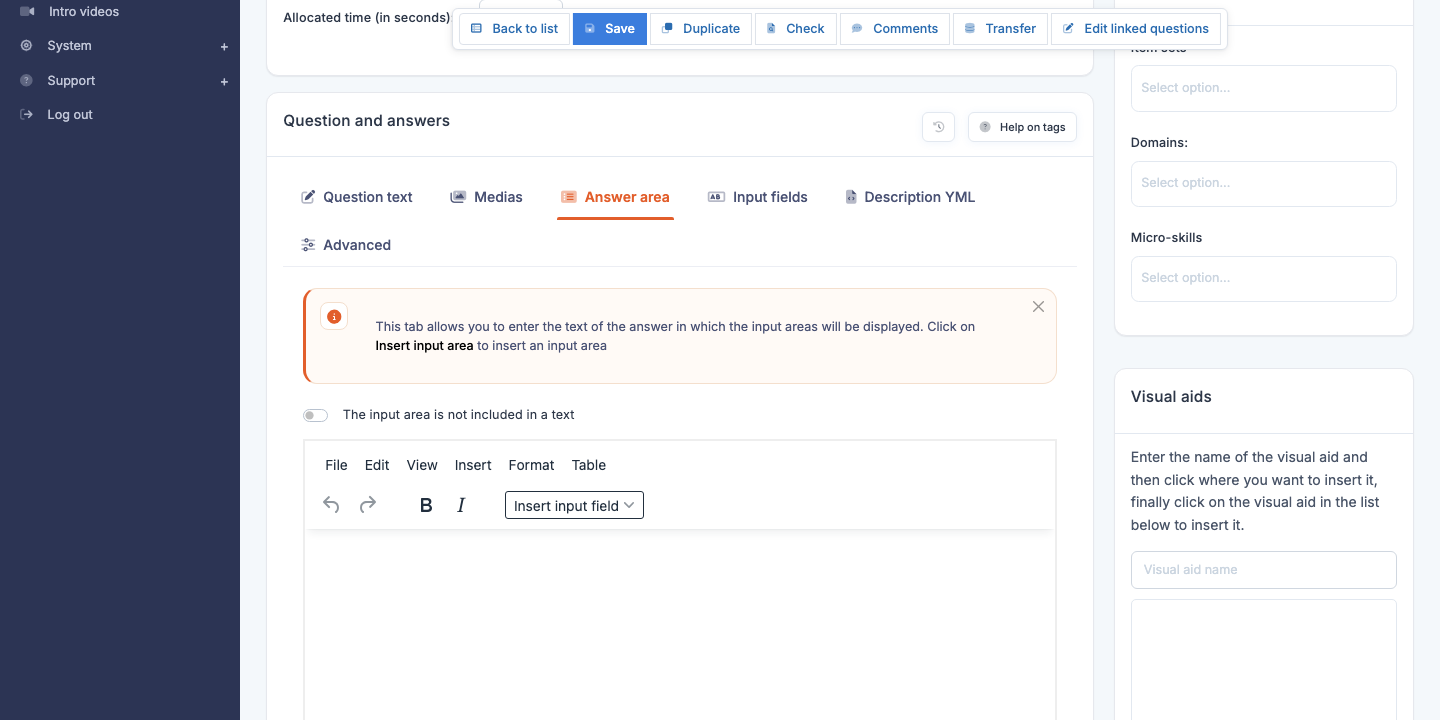
The Fill in the blanks type presents a text with one or more input fields that the candidate must fill in.
Editing
In the question text, you insert input areas with the Insert an input area button. The editor then exposes, for each area, a configuration block:
- Correct answer — exact expected text.
- Accepted variants — other spellings or formulations also counted as correct.
- Case sensitivity — whether the comparison is sensitive to uppercase/lowercase.
Fill in the blanks with dropdown lists
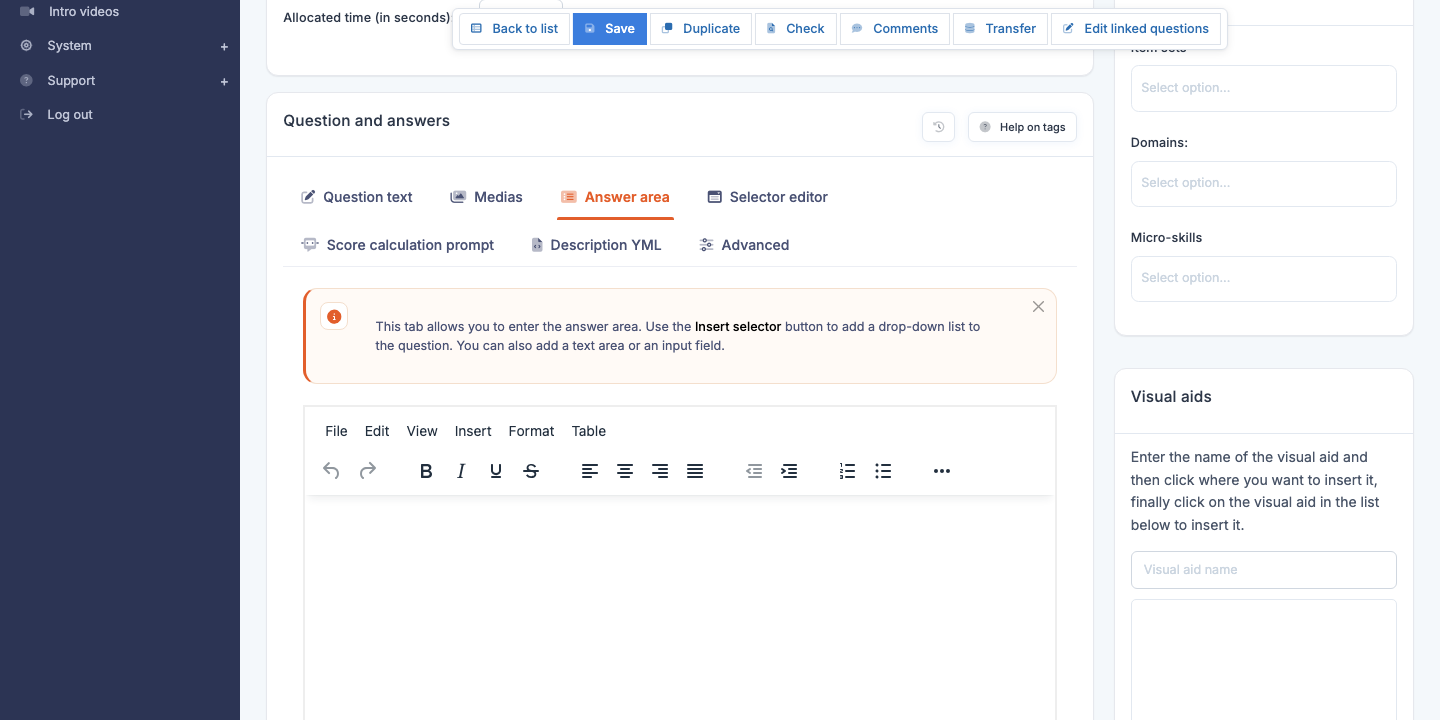
A variant offers the candidate a dropdown list instead of a free-text field. For each blank, you define the list of options and the correct one.
Drag-and-drop
The Drag-and-drop type presents the candidate with items to drag and drop into target zones.
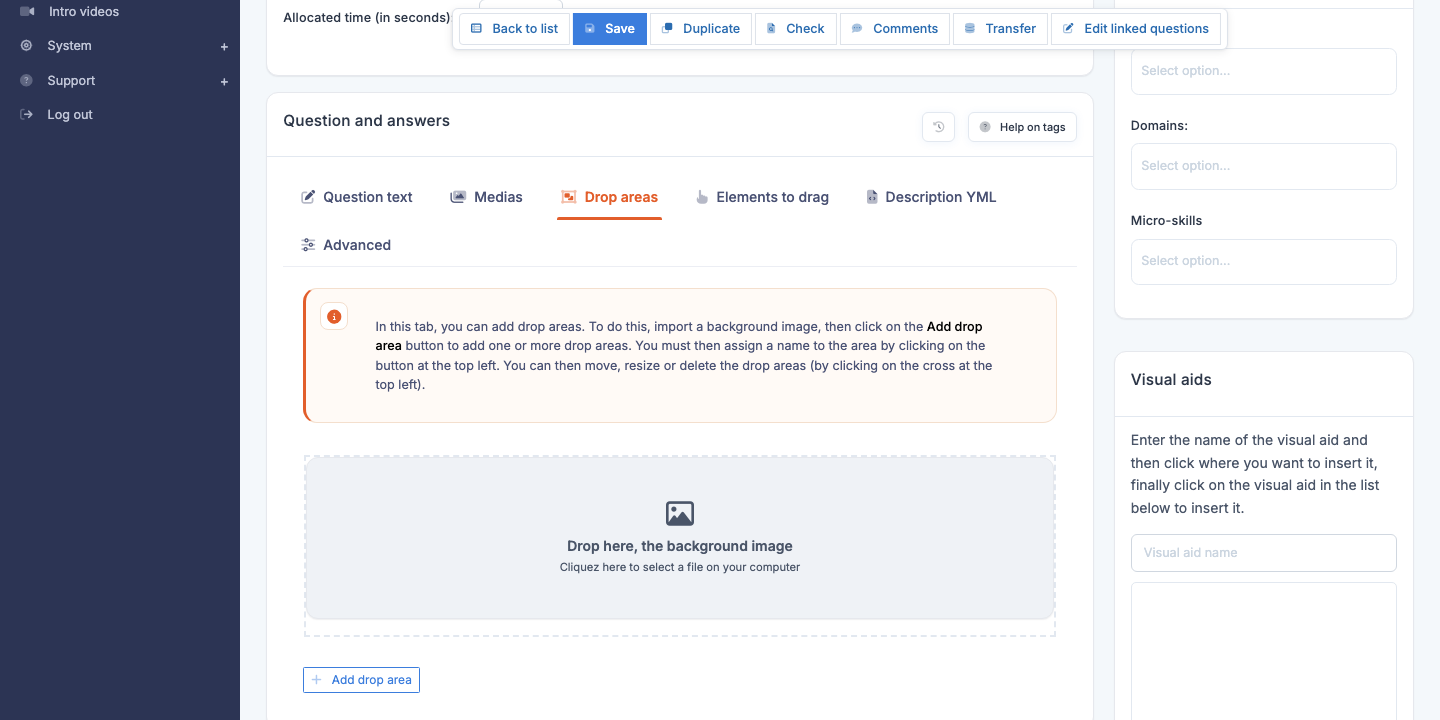
Editing
- Define the list of items (text, image, or both).
- Define the target zones in the background illustration (typically an image with numbered slots).
- For each item, specify the correct target zone.
Sortable
The Sortable type presents the candidate with a list of items to reorder into the correct sequence.
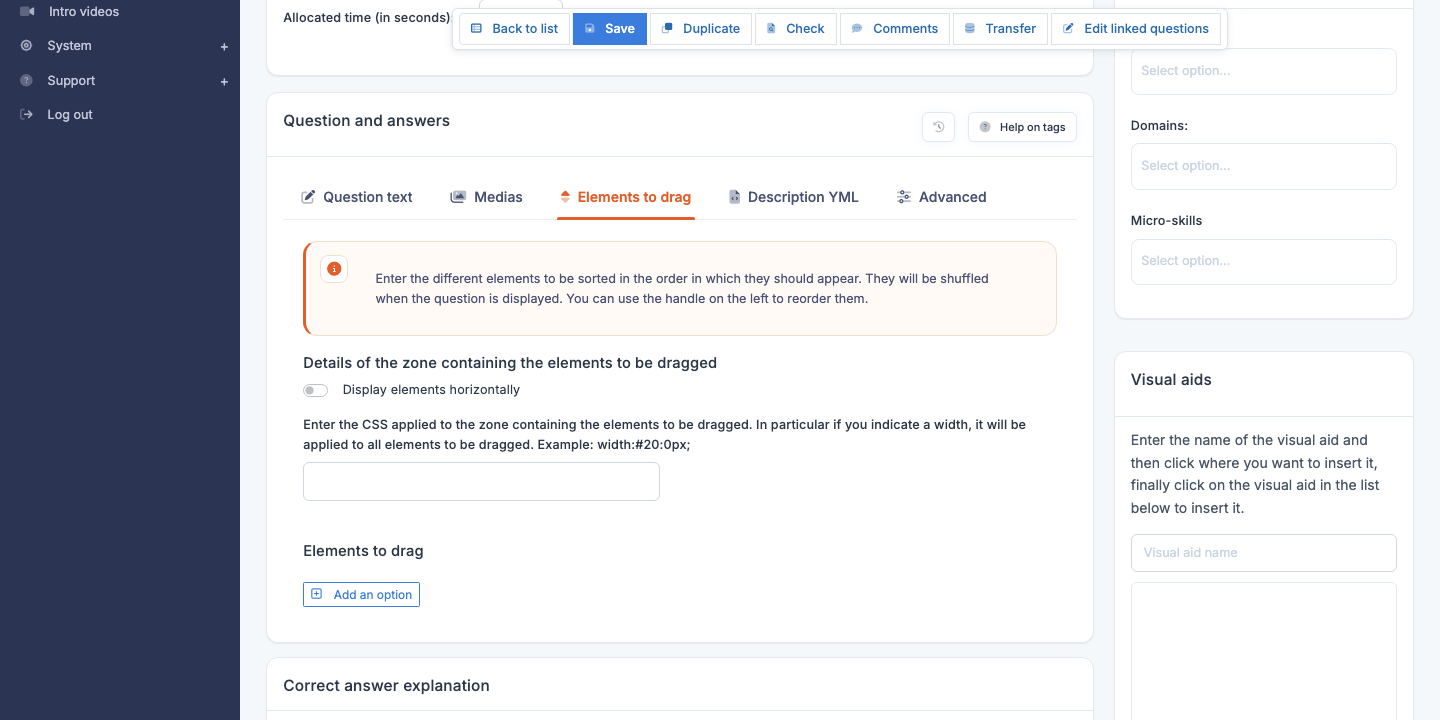
Editing
- Define the list of items in the correct order.
- On presentation to the candidate, they will be automatically shuffled.
- The candidate must put them back into the right order.
Link (pairing)
The Link type offers the candidate two columns of items they must pair.
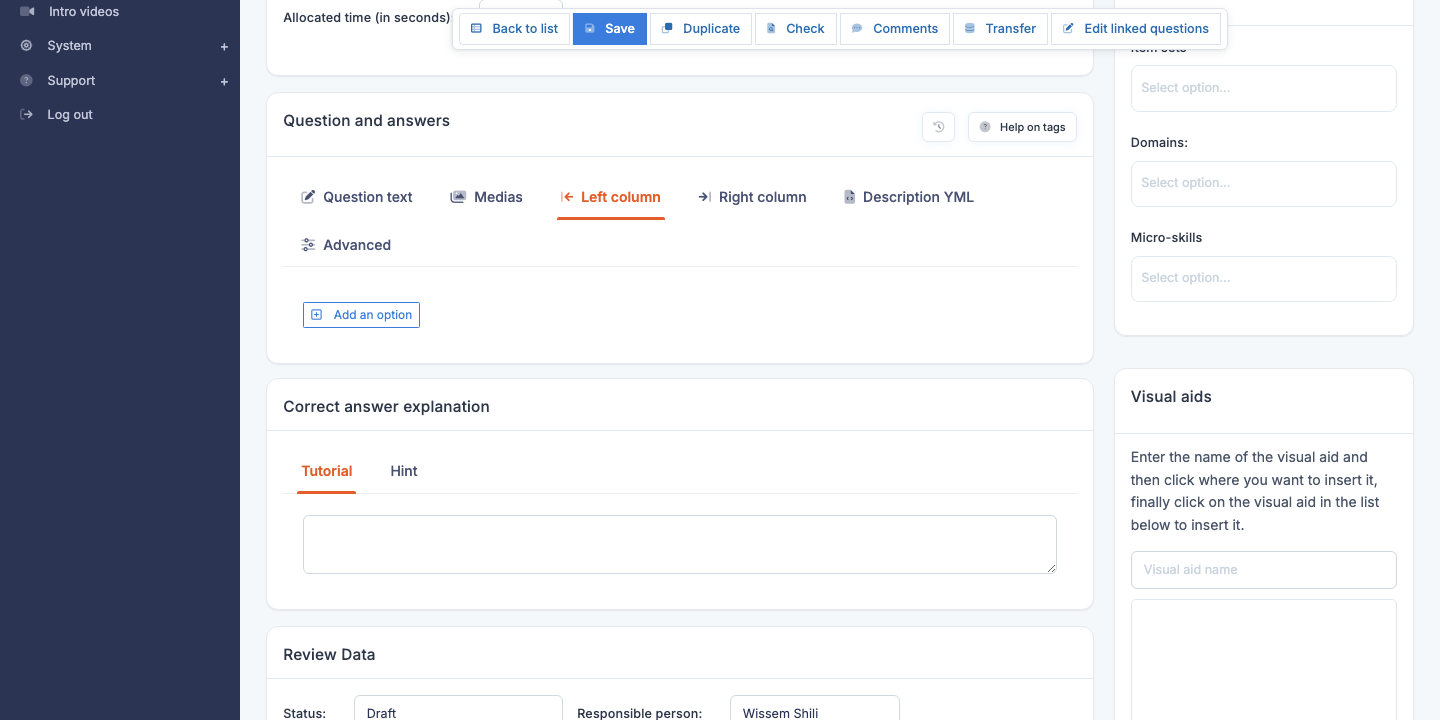
Editing
- Define two lists: column A and column B.
- Indicate which pairs are the correct associations.
- You can have 1-to-1 or 1-to-many correspondences depending on your configuration.
Click in area
The Click in area type presents the candidate with an image on which they must click at a precise spot (a button in a screenshot, an area of a diagram, etc.).
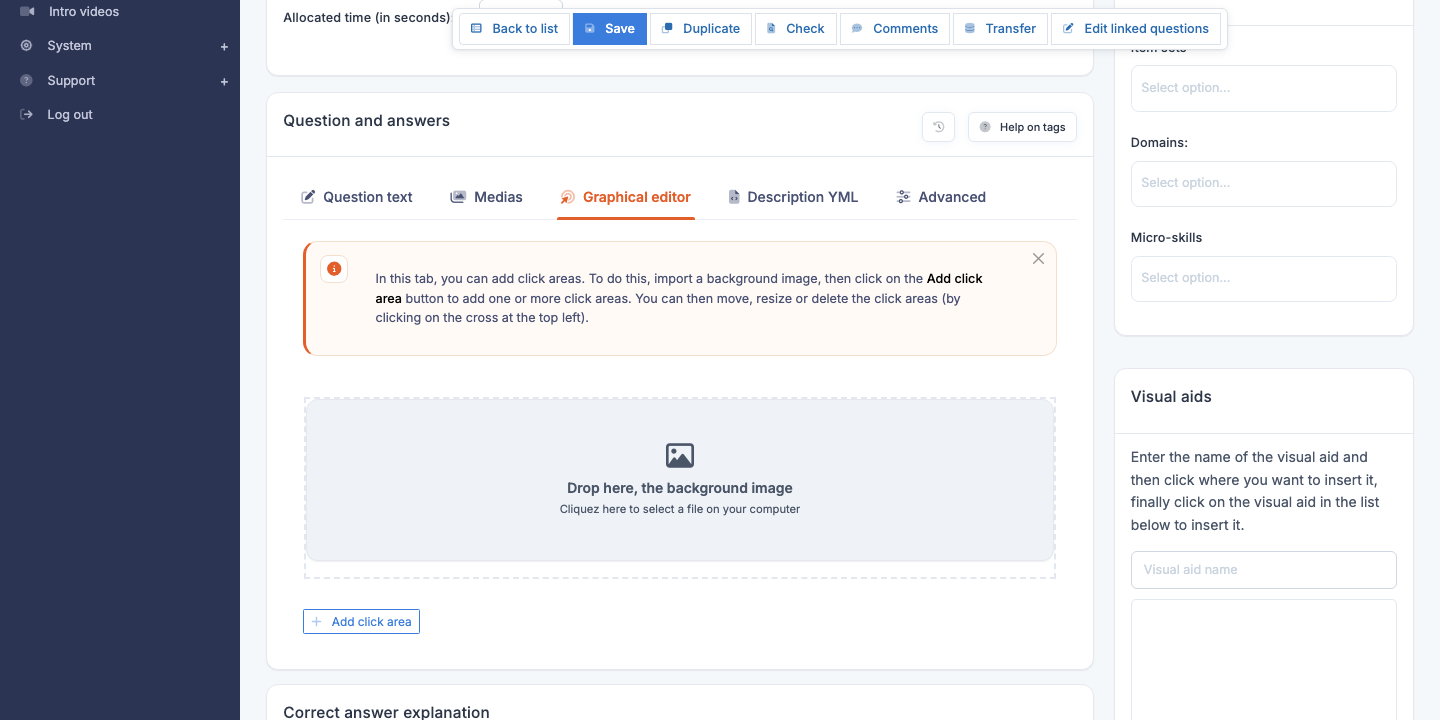
Editing
- Upload the target image.
- Define the correct zone(s) by rectangular coordinates.
- The candidate clicks: the click is considered correct if it falls within a correct zone.
Manual marking
The Manual marking type presents the candidate with a free-form question (essay, diagram, recording) that will be manually graded by a marker after submission.
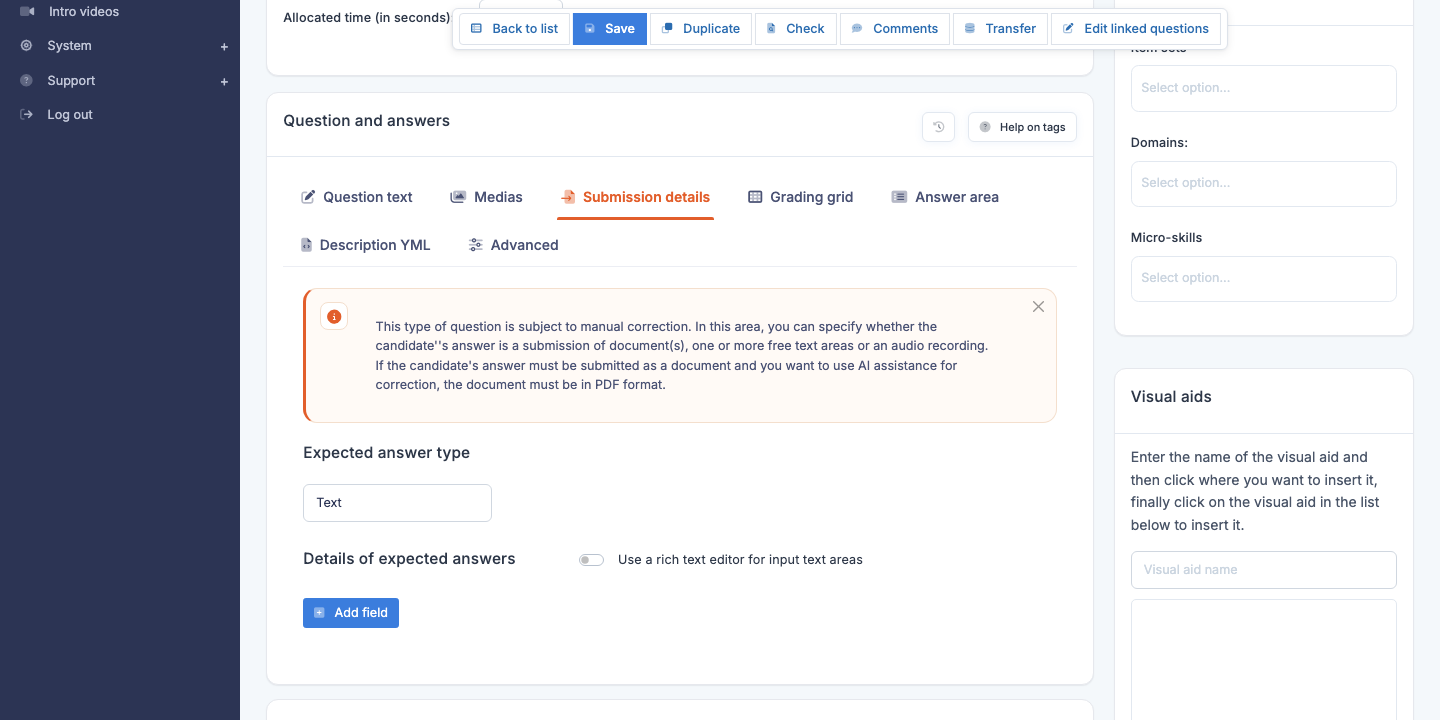
Variants
- Without document submission — the candidate enters their answer in a simple text field.
- With document submission — the candidate uploads one or more documents (audio, video, file). The allowed document type is configurable.
Editing
- Define the prompt (the instructions) in the question text.
- If document submission is enabled: specify the accepted formats and the maximum number of files.
- Define the grading grid or the evaluation criteria — to guide human markers (the grading grid is shown to markers, who score each criterion you defined).
See also the Mark a test section of the administrator manual for the marker-side correction workflow.
Typing test
The Typing test and Typing test with correction types evaluate the candidate’s typing speed and accuracy.
Editing
- Enter the reference text the candidate must retype.
- Configure the test duration (in seconds).
- The score is computed from the number of correct characters per minute, with a penalty for errors.
The with correction variant lets the candidate go back and correct their errors; without correction, every keystroke is final.
Upload with AI grading
The Upload with automatic grading type lets the candidate upload a file (typically a Word/Excel document, a screenshot or an audio recording) which is then analysed by AI to automatically produce a score.
Editing
- Specify the expected file format.
- Write an analysis prompt that guides the AI in its grading: “Check that the document contains a table with at least 5 rows, that the first column is named ‘Name’, and that the formatting is consistent”.
- Choose the analysis mode: strict (binary scoring) or nuanced (score out of 100 with a comment).
⚠️ Non-deterministic AI grading — AI scores can vary slightly from one take to another. Reserve this type for formative assessments, not high-stakes certifications. For rigorous grading, use Manual marking with a human marker.
Save, preview, delete
Save
The Save button at the top of the editor stores all modifications. Saving is done without reloading the page: a success notification appears at the top right.
⚠️ Production questions are read-only — Once a question’s Status is set to Production and saved, the content of the editor becomes read-only: the question is being served to candidates and must stay stable. Only the review block stays editable. To modify the question, set its Status back to Draft there and click Save: the page reloads unlocked, and the question stops being served until it is put back into Production. Administrators holding the appropriate privilege can also click Unlock in the toolbar, which does the same and assigns the question to them.
Check
The Check button runs the editorial diagnostic on the question: empty title or statement, no option marked correct, missing media, and so on. Run it before switching the status to Production.
Preview
The Preview button opens the question as it will appear to a candidate (rendered statement, displayed options, loaded illustrations). It is the mandatory step before any production rollout: a statement that looks clear in the editor can be ambiguous once rendered on the candidate side.
On the preview page, the review block is shown in a panel docked on the right, open by default. The Review button in the toolbar hides or shows it again, and its state is remembered from one preview to the next.
Navigate between questions
The Previous and Next buttons at the top of the page let you move to the neighbouring questions of the current list without going back through the list. Handy for bulk editorial reviews.
Delete
The Delete icon on the question’s row in the list deletes the question after confirmation. If deletion is refused (for example because the question is part of the fixed question list of a test), an error notification is shown and you stay on the page; otherwise you are taken back to the list, with its filters preserved, and a success message is shown.
💡 Prefer the “To delete” status to deletion — To withdraw a question from circulation without losing its history, change its status to To delete instead of deleting it. The question leaves the default list (a filter lets you show these questions again), its historical takes remain analysable, and it is no longer served to new candidates.
Best practices
- A short and clean statement — aim for 3 sentences at most for the question. If the statement becomes long, check whether a visual aid would be clearer.
- Five options for MCQs — this is the number that maximises discriminating difficulty without cognitively overloading the candidate.
- Avoid artificial traps — no double negatives, no subtle spelling differences between options. A candidate should fail because they do not know the answer, not because they misread.
- Document the tutorial — the tutorial is the pedagogical value of the question. It is what distinguishes a simple assessment from a learning tool.
- Test before publishing — pass the question through a colleague (or yourself via the preview) before switching it to Production status. Broken questions in production degrade the perceived quality.