Test proctoring
Remote proctoring guarantees the integrity of a test taken remotely, without an in-person invigilator. The platform offers several levels of proctoring — from mandatory full screen up to video and audio recording — together with post-hoc review of the detected incidents.
This chapter covers three complementary pages:
- Proctoring profiles — configure how your tests are proctored (which checks, which recordings).
- Proctored tests management — review the sittings already completed and validate or invalidate each test based on the collected evidence.
- Live proctoring — watch the camera and screen of the candidates of a test session in real time.
💡 Availability — Remote proctoring is an account option. If you do not see the pages described here in the menu, contact your Isograd representative to enable the feature.
Proctoring profiles
A proctoring profile is a set of settings that determines what the platform checks and records during the test. You can create several profiles (for example, “Light exam” vs “Strict certification”) and attach them to test sessions to apply the right level of control in the right context.
Open this page through the Proctoring → Proctoring profiles menu.
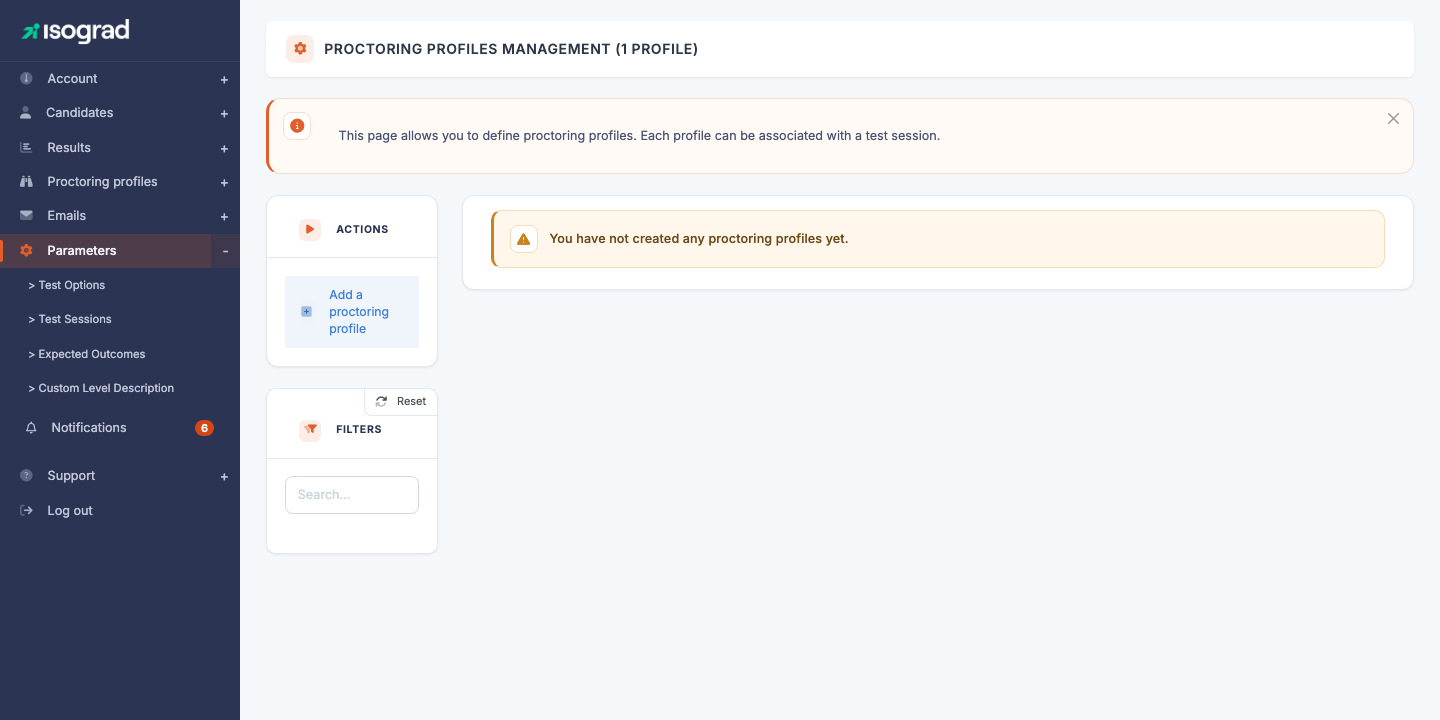
The page lists your existing profiles. If your account is new and has no profile defined yet, you will simply see “You have not yet created a proctoring profile.”. Each row shows the name of the profile and a Default marker for the profile used when none is explicitly chosen.
Create a proctoring profile
Creation happens in two steps: name the profile, then configure its options in the edit window that opens automatically.
Step 1 — Name the profile
-
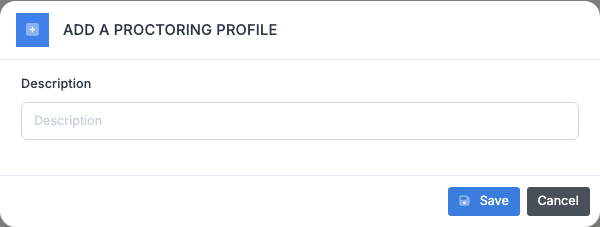
Click on Add a proctoring profile in the action bar.
-
Fill in the profile’s Description — this is the label that will appear in the list and in the test sessions. Choose a meaningful name such as “Strict certification” or “Light internal exam”.
-
Click on Save. The platform creates the profile and immediately opens the edit window with its options.
Step 2 — Configure the proctoring options
In the profile’s edit window, tick the desired proctoring options:
| Option | Effect |
|---|---|
| Request an ID document | The candidate must photograph their ID document before starting. The photo is available for review afterwards. |
| Force full screen | The test can only be taken in full-screen mode. Exiting full screen triggers an incident. |
| Record video and audio | The candidate’s webcam and microphone are recorded for the duration of the test (both are therefore mandatory). The video, with its sound, is available at review time. |
| Take regular screenshots | Periodic screen and webcam captures during the test. |
| Perform a room scan | Before the test, the candidate makes a 360° sweep of their room with their webcam to show they are alone and that their workstation is compliant. |
| Requires secure browser | The test can only be taken in Safe Exam Browser, an exam browser that locks down the candidate’s computer. See the dedicated section below. |
Click on Save to persist the configuration. The profile is immediately usable in test sessions.
The secure browser (Safe Exam Browser)
The Requires secure browser option forces the test to be taken in Safe Exam Browser (SEB), a free exam browser (Windows and macOS) that locks down the computer for the whole duration of the test: the candidate cannot switch applications, open other websites, or copy-paste to the outside.
On the candidate’s side, the journey is:
- They install Safe Exam Browser once on their machine (the download link is offered when launching the test).
- When starting a test that requires the secure browser, the platform has them download a personal exam file (
.seb). Opening it launches SEB directly on their test, already logged into their account. - The platform verifies on every page that the test is really running inside SEB — it is impossible to start in SEB and then continue in a regular browser.
- At the end of the test, SEB closes automatically.
Depending on the test’s content, SEB automatically allows what is needed — and only that: the applications required by file-submission questions (for example Excel for a workbook question), or navigation to the exercise site for WordPress tests. No other application or website is reachable.
Interaction rules with the other profile options:
- Enabling the secure browser ticks and locks “Force full screen” (the lockdown is guaranteed by SEB itself) and disables the website whitelist (site filtering is built into the secure browser).
-
Screenshots — regular screen captures are not available with the secure browser, whatever the system: the Take regular screen captures option is unticked and greyed out, and a note below the options explains why. Audio and video recording works normally.
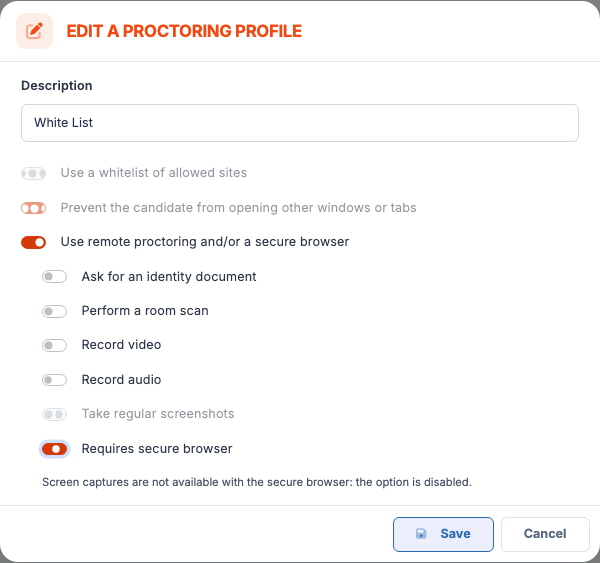
- Unticking Use remote proctoring resets all of its options, including the secure browser.
⚠️ Video content on Windows — Safe Exam Browser for Windows cannot play MP4/H.264 videos. If your test contains videos in that format, contact your Isograd representative before enabling the secure browser.
Set a default profile
The default profile is applied automatically to every proctored test for which no profile is explicitly chosen (notably through test sessions).
- On the profile’s row, click on Set as default proctoring profile.
- Confirm. The Default label moves to this profile; the previous default profile remains active but is no longer applied automatically.
Edit a profile
- On the profile’s row, click on the Edit icon (pencil).
- Adjust the options.
- Save.
⚠️ Effect on tests in progress — Editing a profile does not affect tests already started or completed: only future tests using this profile will get the new options. Existing recordings remain those of the profile at the time of start.
Delete a profile
- On the profile’s row, click on the Delete icon.
- Confirm.
⚠️ Profile in use — If the profile is attached to tests, a second confirmation tells you how many: after the deletion, those tests are considered unproctored (pending tests get their proctoring credit back). The deletion is refused in two cases: if your account has no proctoring credit pack allowing this refund, or if the profile is used by a live-proctored session that is not over.
Proctored tests management
Once your tests have been taken under proctoring, this page lets you review the detected incidents and validate or invalidate each sitting based on the observed compliance.
Open this page through the Proctoring menu.
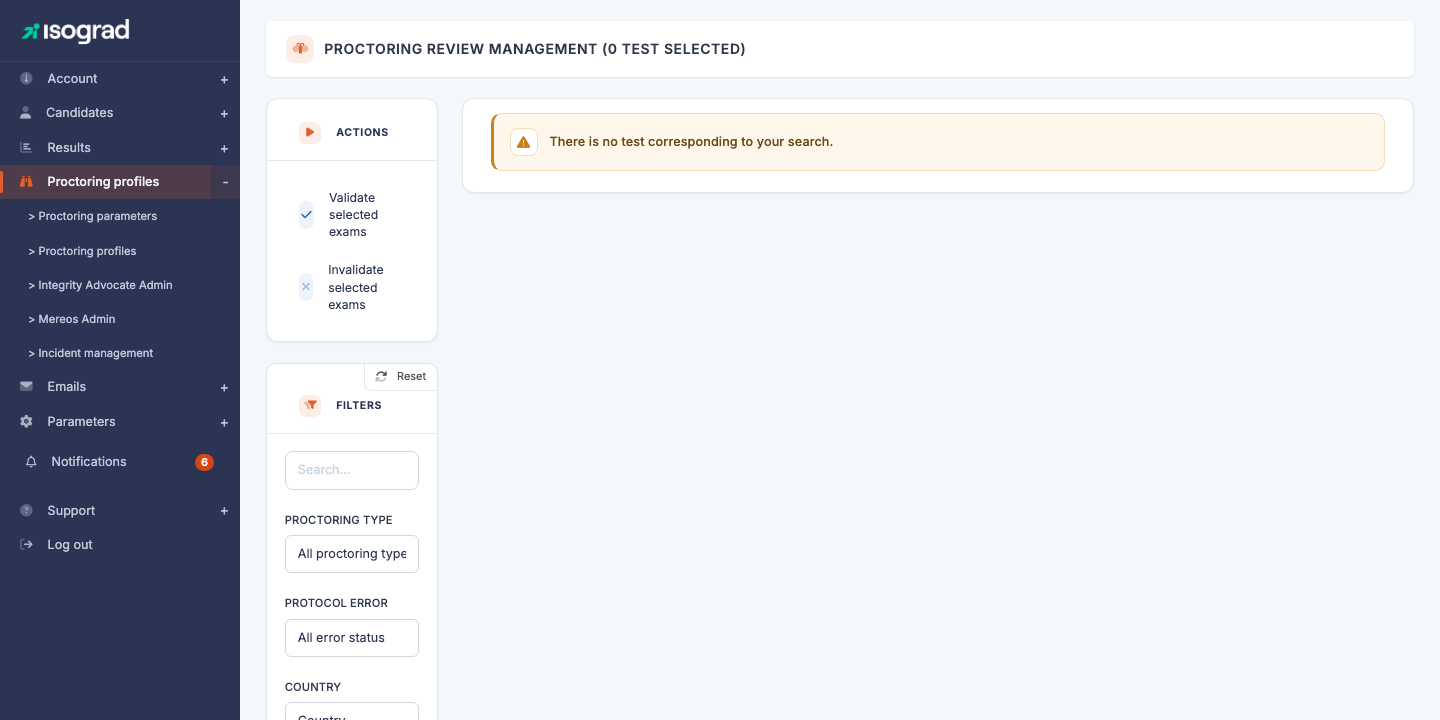
Each row in the table represents one test taken under proctoring:
| Column | Content |
|---|---|
| ID | Internal identifier of the registration. |
| Full name | Candidate identity. |
| Test | Name of the subject taken. |
| Sitting date | Date and time of the sitting. |
| Proctoring type | Proctoring profile used (video, full screen, etc.). |
| Validation status | Current state — Pending, Validated, Invalid. |
| Incident | Number and nature of automatically detected incidents. |
Filters
The filters panel lets you target:
- Proctoring type — restrict by profile used.
- Validation status — for example show only tests Pending review.
- Incident — for example show only tests that triggered an Exit full screen incident.
Review a proctored test
The action buttons at the end of each row depend on the proctoring type and status:
-
Show the photos taken during the test (camera icon) — opens a gallery of the screen and webcam captures taken periodically. The Show only suspicious images toggle filters the captures where AI has detected an anomaly; the Reasons flagged by the AI block then lists the detected reasons with their number of occurrences (face barely visible, second device or screen, document within reach, conversation with a third party, earphones, another person present, another tab or application active…) and clicking a reason scrolls to the first matching image.
- Show the ID document (silhouette icon) — displays the photo of the ID document provided by the candidate at start.
- Protocol review comment (magnifier icon) — for tests with an incident, this window details each incident, its nature, and offers a field to record the proctor’s explanation or to ask the candidate for further information. For a test taken in a live-proctored session, it also shows the proctors’ reports (Reported by), the exchanged messages and the audio listening or conversations.
Validate or invalidate a test
Once the review is done, you make the call:
- Validate (green ✓ icon) — the test is compliant. The candidate’s result is finalised and the diplomas/reports are issued.
- Invalidate (red ✗ icon) — the test is not compliant (cheating detected, condition not met). The result is marked invalid; no diploma is issued.
For a bulk action, select several tests using the checkboxes at the start of the row, then use the Validate the selected exams or Invalidate the selected exams buttons in the action bar.
Validation statuses
| Status | Meaning |
|---|---|
| Awaiting details | An incident has been detected (for example, exit from full screen) but no explanation has been provided yet. You must detail the reasons, or ask the candidate to do so. |
| Detail under review | An explanation has been entered and is awaiting review by the Isograd team (for certifications). |
| Explanation validated | The Isograd team has validated the explanation; the test is compliant. |
| Validated | The test has been validated by an account administrator. |
| Invalid | The test has been invalidated by an account administrator. |
Request explanations from the candidate
For certifications with an incident, you can ask the candidate to justify the incident:
- On the row, click on the Send an ID document request icon (or the equivalent for an incident).
- The candidate receives an email inviting them to provide the explanation in their candidate area.
- Once their response is submitted, the status moves to Detail under review and you can consult it in the Protocol review comment window.
💡 Validation best practices — For official certifications, be strict about incidents (exit from full screen > 60 seconds, presence of a second person in the captures). For internal corporate evaluations, you can be more lenient — proctoring remains a deterrent as much as a punitive tool.
Live proctoring
Live proctoring complements recorded remote proctoring: during a live-proctored test session, proctors of your account watch each candidate’s camera and screen in real time, can write to them, talk to them, warn them, report an incident or stop their test — as in an exam room.
Prerequisites
- Your account uses Isograd remote proctoring (otherwise the feature does not appear).
- An Isograd remote proctoring profile with Record video and audio ticked: it is the only compatible profile type.
- The proctors hold the Proctor test sessions live privilege (see Edit privileges). A proctor only sees the sessions they proctor, unless they also hold the See every live proctored session privilege.
- A test session created with the Live proctoring switch on, its proctoring profile and its proctors. The session’s profile is imposed on every test attached to it.
Sessions in progress
Access this page via the Proctoring → Live proctoring menu.
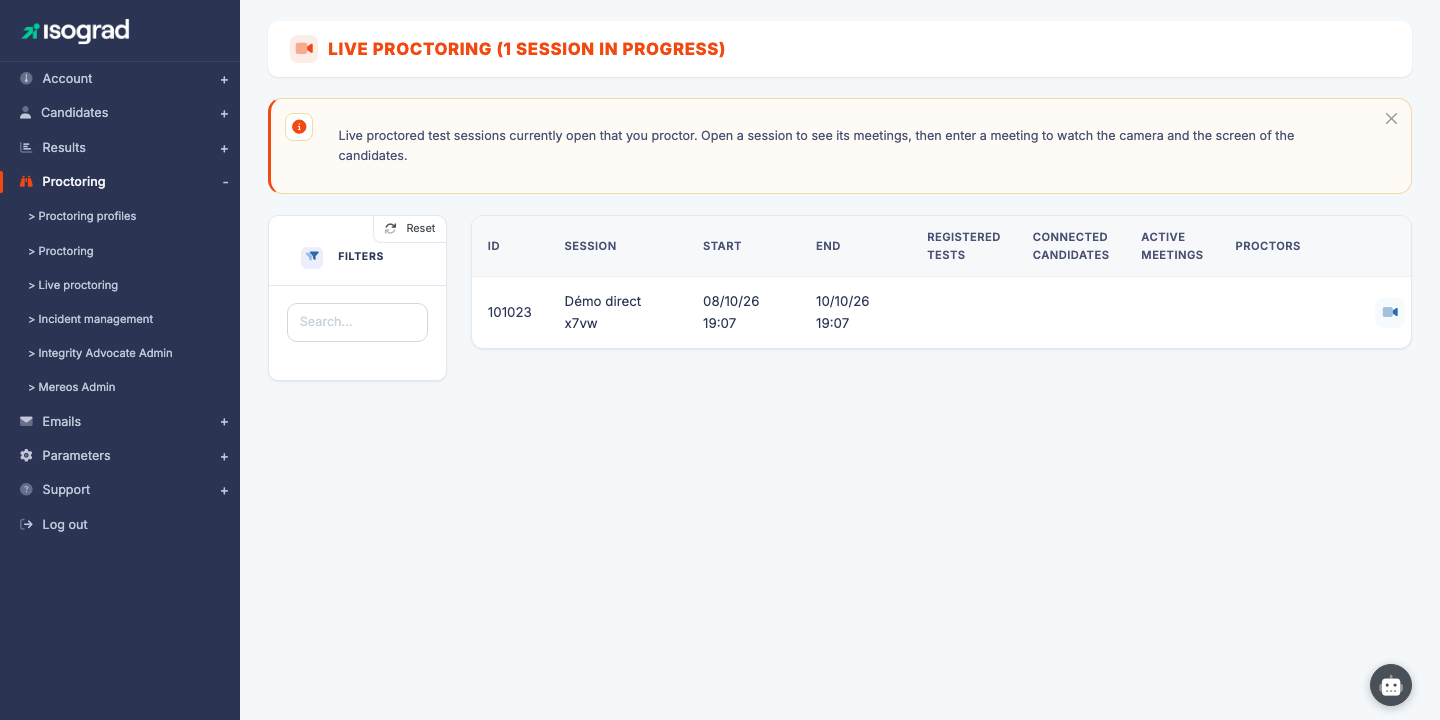
The page lists the live-proctored sessions currently open (between their start and end dates) that you proctor, each with its number of registered tests, connected candidates, active meetings and its list of proctors. The Search field filters the list on the session name or ID. Click See the meetings (camera icon) at the end of the row to open the session.
The meetings of a session
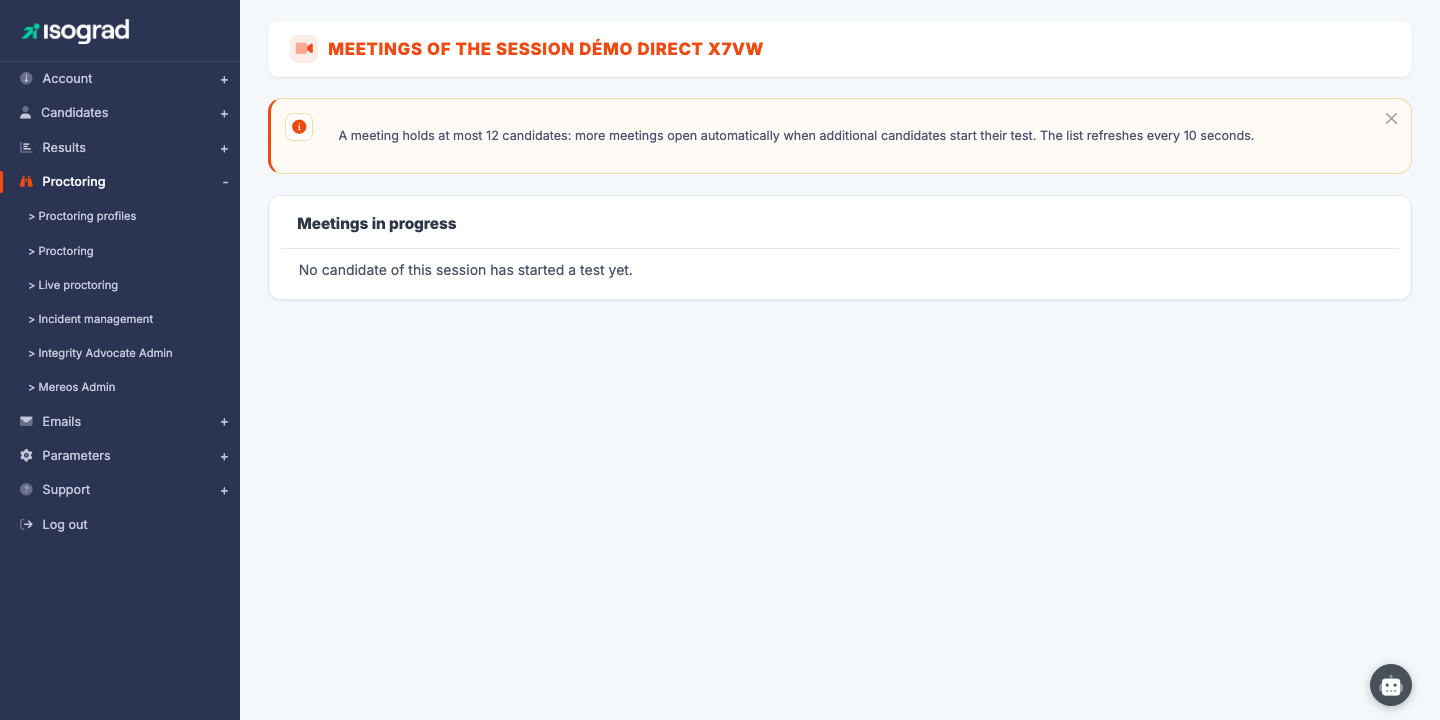
The candidates of a session are automatically split into meetings of at most twelve candidates: a new meeting opens by itself when additional candidates start their test. Each card shows the number of connected candidates, the number of proctors present and the opening time; the list refreshes every ten seconds. As long as no candidate has started a test, the page simply says that no meeting is in progress. Click Enter the meeting to join a meeting.
In the meeting
In the meeting, each candidate appears with their camera and screen; click a card to enlarge it. No sound is transmitted by default: the candidate’s microphone is required but not recorded. For each candidate, the following actions are available:
| Action | Effect |
|---|---|
| Messages | Opens a written conversation with the candidate; the messages are kept with the test. |
| Listen / Talk | Opens an audio listening or conversation with the candidate. One audio conversation at a time per meeting; it stops automatically after ten minutes. |
| Warn | Displays a message of your choice on the candidate’s screen for twenty seconds. |
| Report | Records an incident with your description; it then appears in the test review (see above). |
| Stop / Resume | Interrupts the candidate’s test, who is sent back to their test list, then resumes it giving back the time elapsed while stopped — the same action as from the candidate’s record. |
The Switch meeting and Leave the meeting buttons at the top of the page let you move to another meeting of the session or exit.
💡 Trace in the review — Everything that happens live is kept with the test: the exchanged messages, the audio listening and conversations, the warnings and the reports appear in the Protocol review comment window of the Proctored tests management page, with the proctor’s name.
Enable proctoring on a test
Proctoring is not enabled item-by-item on this page: it is decided at the time of registration of a candidate to a test. To enable proctoring on a test:
- Register the candidate to the test (see Register a candidate to a test).
- In the registration window, enable the Remote proctoring option.
- Choose the proctoring profile to apply from the list; otherwise, the default profile is applied automatically.
If the candidate is registered on a live-proctored session, the session’s profile is imposed: the selector is locked and a message says so.