Account management
The Account menu gathers the pages related to your organization (legal name, address, logo), to the management of your Tosa credits (pack overview, expiration and threshold alerts), and to your administrator profile (password, credentials, language).
This chapter covers the Account details and Credit alerts pages. Administrator management is covered in its own chapter — see Administrator management.
Account details
Access this page via Account → Details from the navigation menu.
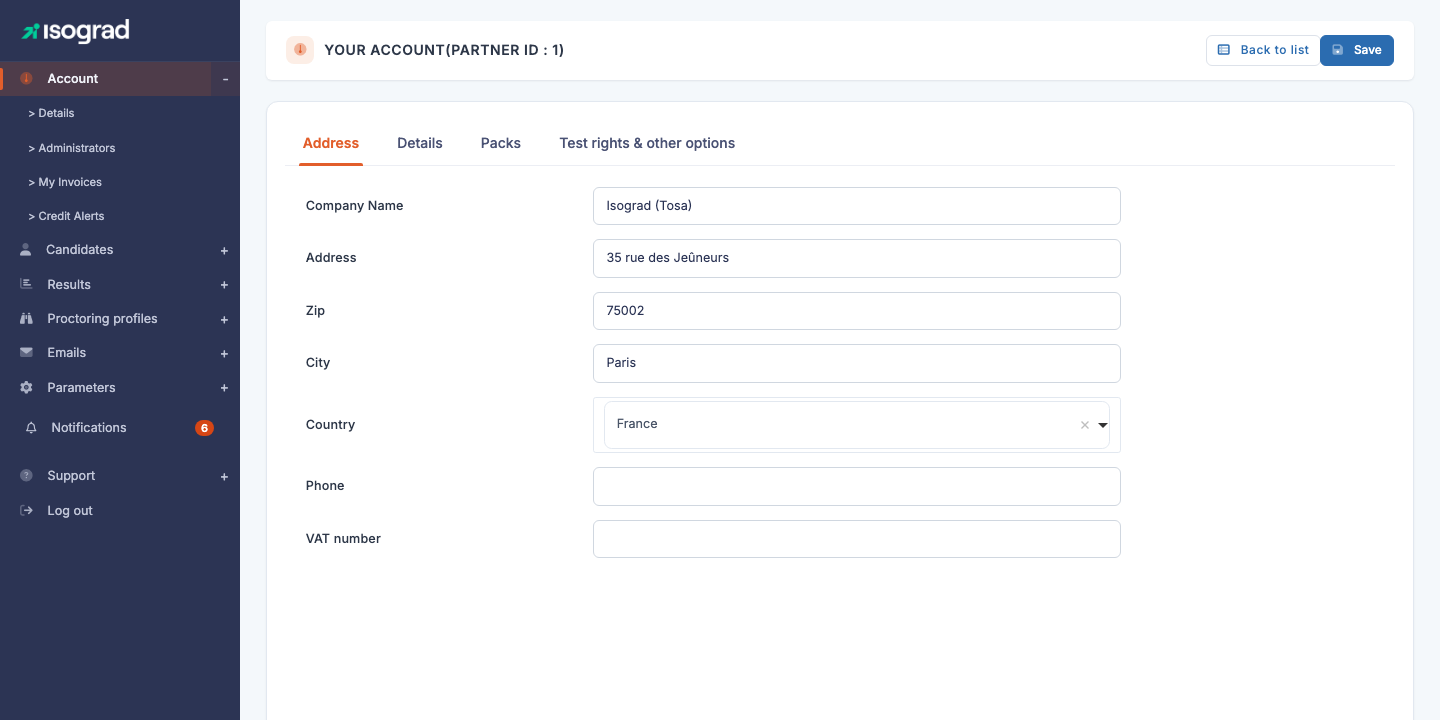
The Your account page is organized into several tabs:
- Address — postal and tax details of your organization (legal name, address, phone, VAT number).
- Details — additional settings: logo displayed on reports, GDPR and feedback email addresses, and depending on your profile, brand, sales contact, currency and customer type.
- Packs — list of credit packs in progress, their quantity and their expiration date.
- API — access to the platform API: authentication parameters, your tests’ identifiers and technical documentation. This tab only appears on your own account.
- Delete your account — for the main administrator, when the account has several administrators.
💡 Tabs visible according to your profile — Some tabs or fields only appear depending on the account type (for example, a CPF tab appears for French training centers registered on Mon Compte Formation). Don’t worry if you don’t have exactly the same tabs as in the screenshot above.
Edit account details
-
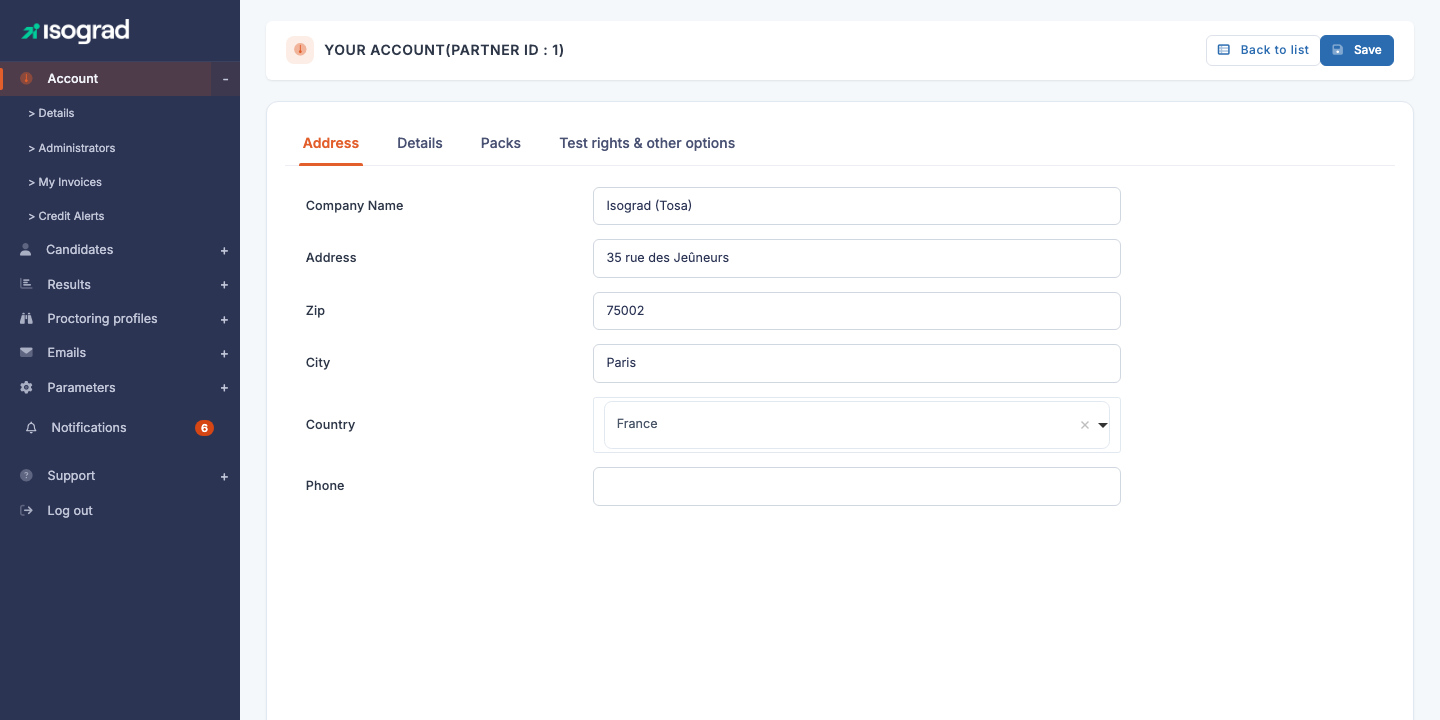
Open the Address tab (selected by default).
-
Edit the desired fields:
- Legal name — legal name of your organization.
- Address, Postal code, City, Country — main postal address.
- Phone — contact phone number.
- Intra-community VAT number — used for billing European accounts.
-
Click Save at the top right. Changes are saved immediately.
Edit the logo and notification settings
The Details tab lets you customize several elements visible in your communications with candidates.
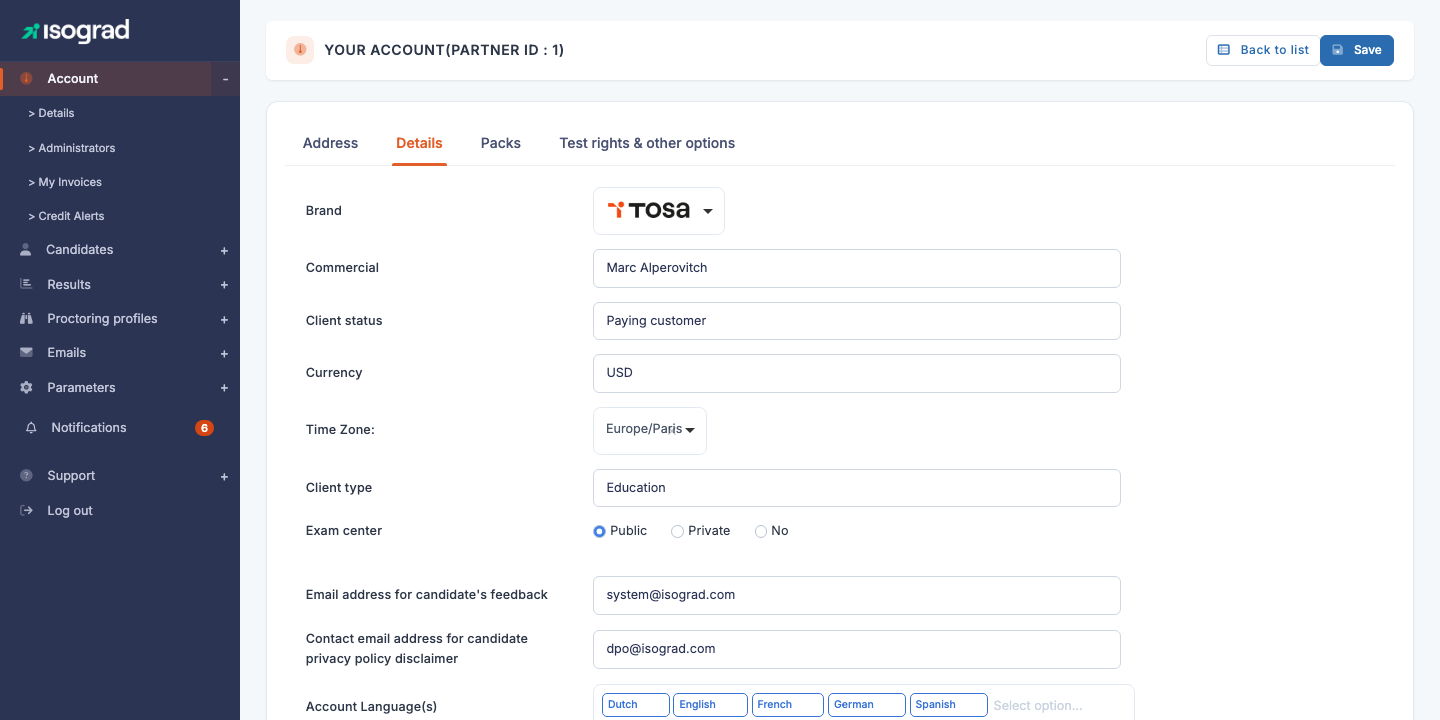
- Logo — image (JPG or PNG) that will appear on the test reports sent to candidates. Scroll down to the Upload logo button, click to open the upload window, select your file and confirm.
- Feedback email address — contact address used when a candidate fills in the feedback form on the platform.
- GDPR rectification email address — address at which your candidates can request rectification or deletion of their personal data. It appears in the GDPR legal notice at the foot of your emails.
💡 Distributor fields — If you see fields like Brand, Sales contact, Currency, Contract type, Customer type or Approved center, or an additional Tests used & other options tab on this tab, it means your account is of distributor or approved-center type. These fields cannot be modified by you; they are managed by your Isograd contact.
💡 The logo does not appear in emails — The logo configured here is used only in the PDF reports sent to candidates. To customize the header of your emails, use the dedicated banner — see Add a custom banner.
API settings
The API tab gathers what you need to connect your information system (LMS, HR software, recruiting tool) to the platform:
- Show the authentication parameters — opens a window with your Client ID and Client Secret, to copy into your integration. The secret is masked by default; the eye icon reveals it and the copy icon puts it in the clipboard. The credentials are generated the first time the window is opened.
- Show the test identifiers for the API — opens the list of your account’s tests with the identifier to use in registration calls.
- See the API technical documentation — opens the developer documentation in a new tab.
⚠️ Client Secret — The secret gives access to your candidates’ data: only share it with the technical team doing the integration and never paste it into a shared document.
💡 API not included — If your subscription does not include API access, the tab only shows a message saying so; contact your Isograd representative to enable it.
Packs and credits
The Packs tab lists all your Tosa credit packs in progress, their initial quantity, their remaining quantity, and their expiration date.
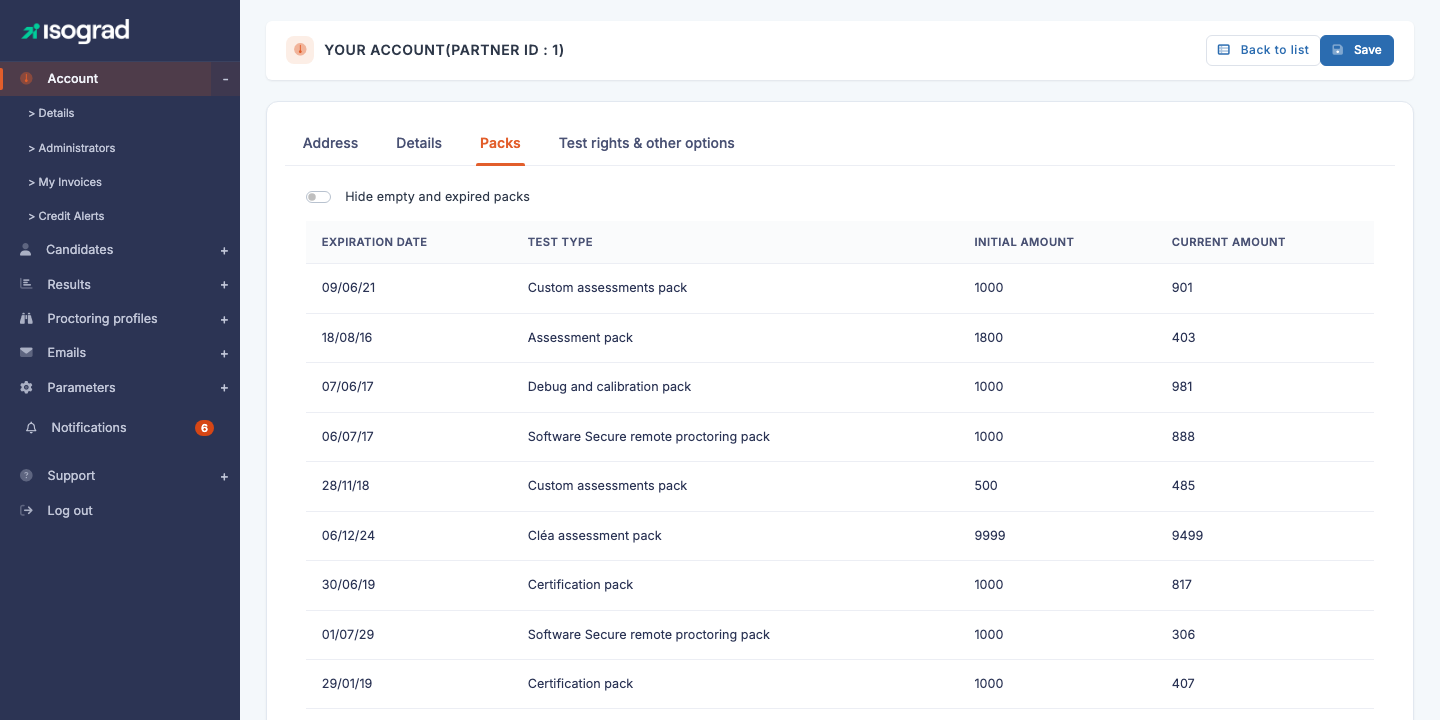
The table shows, in order, the following columns:
| Column | Content |
|---|---|
| Expiration date | Date beyond which the credits will be lost. |
| Test type | Nature of the pack (Evaluation pack, Certification pack, Remote proctoring pack, etc.). |
| Initial quantity | Number of credits originally purchased. |
| Remaining quantity | Credits still available to date. |
The Hide empty and expired packs toggle at the top of the table lets you filter the view to only see the packs that are still usable — convenient once your account history starts to grow long.
Purchase additional credits
To order new credits, use the Purchase test credits button (visible depending on your contract type) or contact your Isograd representative directly. Purchased packs appear automatically in the table as soon as they are set up on your account.
💡 Account with no packs — If you don’t have any pack yet, the platform simply displays “You have no credit pack in progress.”
View consumption details
Beyond the list of packs, the Account → Credit consumption page shows detailed consumption per group and per administrator, over a chosen period. This view is useful for periodic reviews (“how much did promotion A consume over the last quarter?”) and can be exported to Excel.
Credit alerts
The Credit alerts page (menu Account → Credit alert) lets you configure three independent email alerts to track your credit consumption without having to come back and check the account manually.
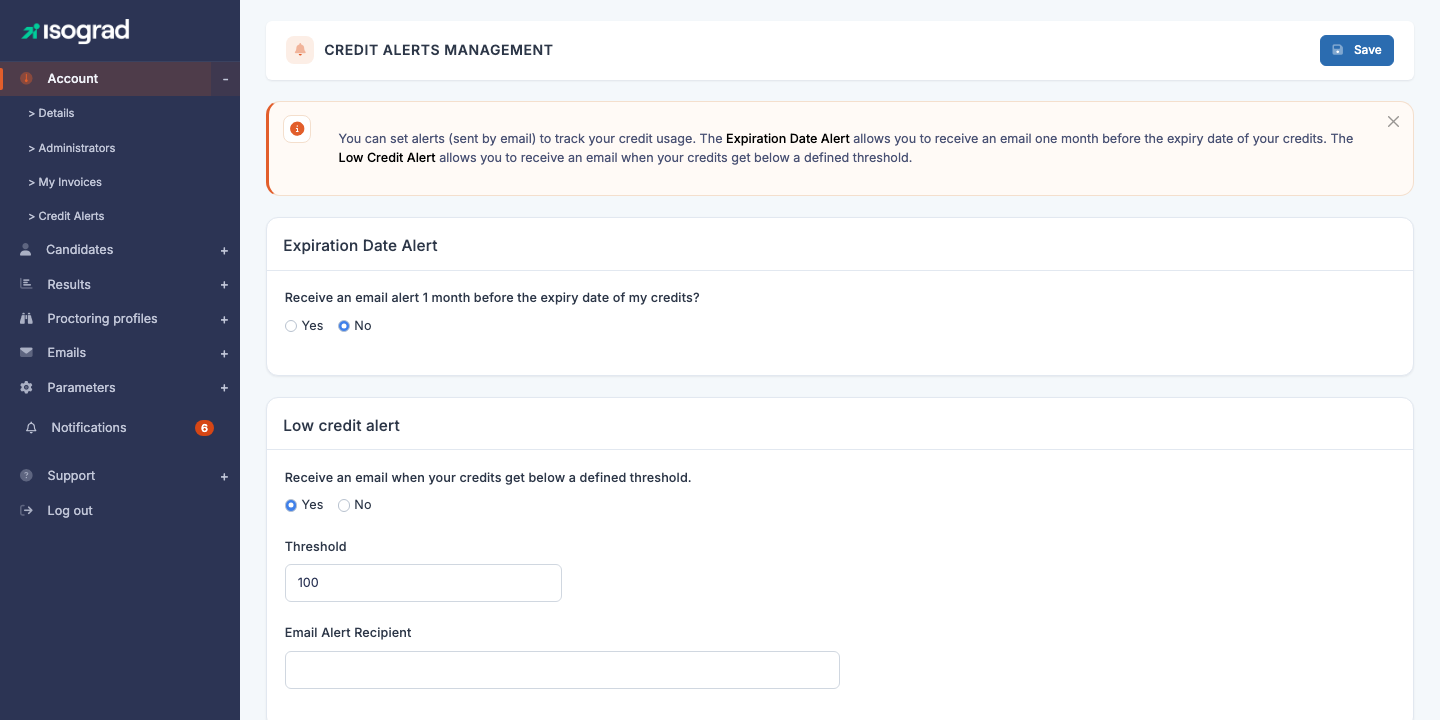
The three alerts are:
- Expiration alert — an email one month before the expiration date of your credits.
- Credit count alert — an email when your credit quantity drops below a threshold that you set.
- Monthly consumption alert — an email every month summarizing your consumption for the past month.
Each alert can be enabled independently via its dedicated toggle. For each one, you specify the recipient of the alert (who is not necessarily you — for example, the recipient of financial alerts could be your accounting manager).
Configure an alert
-
For the alert that interests you, enable the toggle “Receive an alert email…”. The configuration fields become editable.
-
Fill in:
- The recipient (email address) who will receive the alert.
- For the Credit count alert only: the threshold in number of credits. You will receive the alert as soon as your stock drops below this value.
-
Click Save at the top right. The configuration is in place; no further action is required — the platform will trigger sending automatically when the conditions are met.
💡 Recommended — Enable at least the expiration alert and the threshold alert to avoid unpleasant surprises (expired unused credits, or being unable to register a new candidate because the counter has dropped to zero). The monthly alert is useful for high-volume accounts.
⚠️ Only one expiration alert per month — The expiration alert is triggered once per pack reaching its expiration. You will not receive daily reminders; remember to archive the email so you don’t forget it.