Results management
The Test Results page is the dashboard for your account’s activity: every test completed, in progress or to be taken by your candidates is listed here, along with their scores and access to the detailed reports. It is also the page from which you download reports and certificates, individually or in bulk, and from which you trigger automatic sending to candidates.
Open this page through the Results menu.
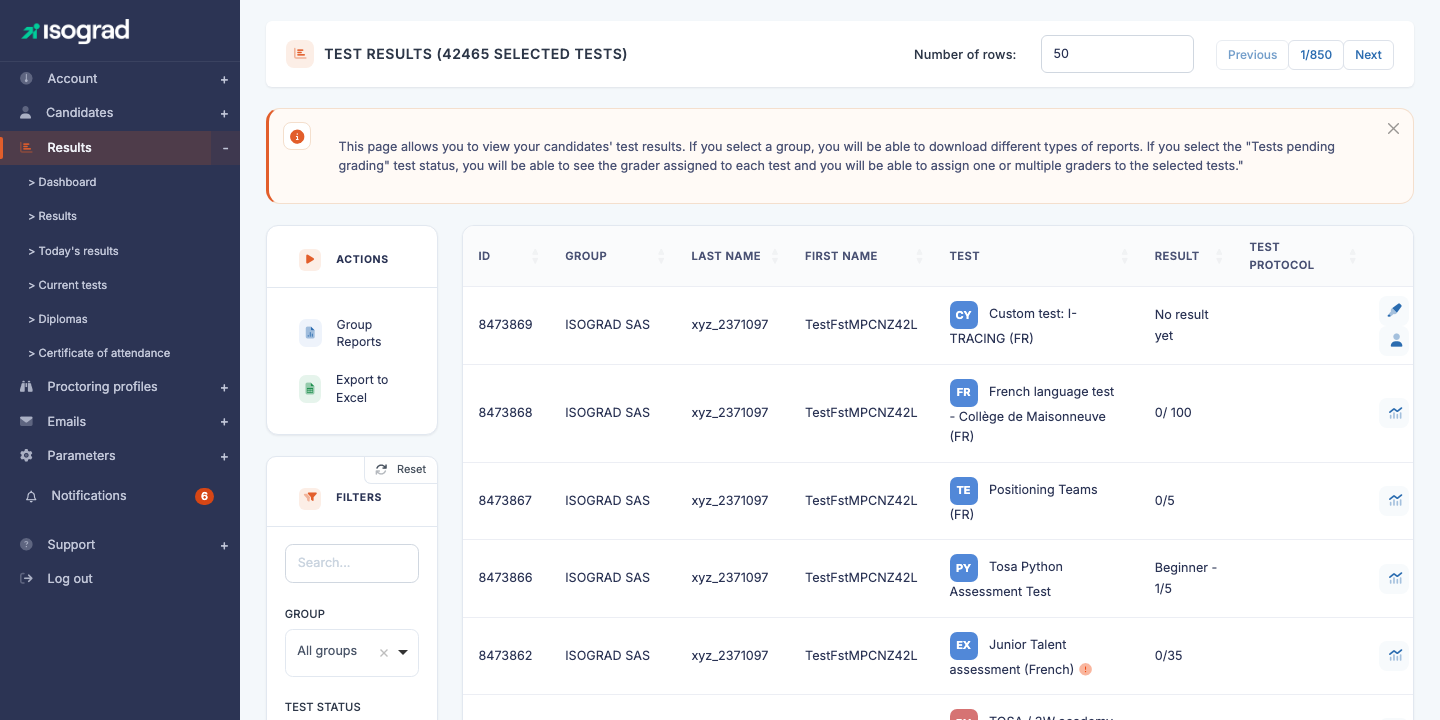
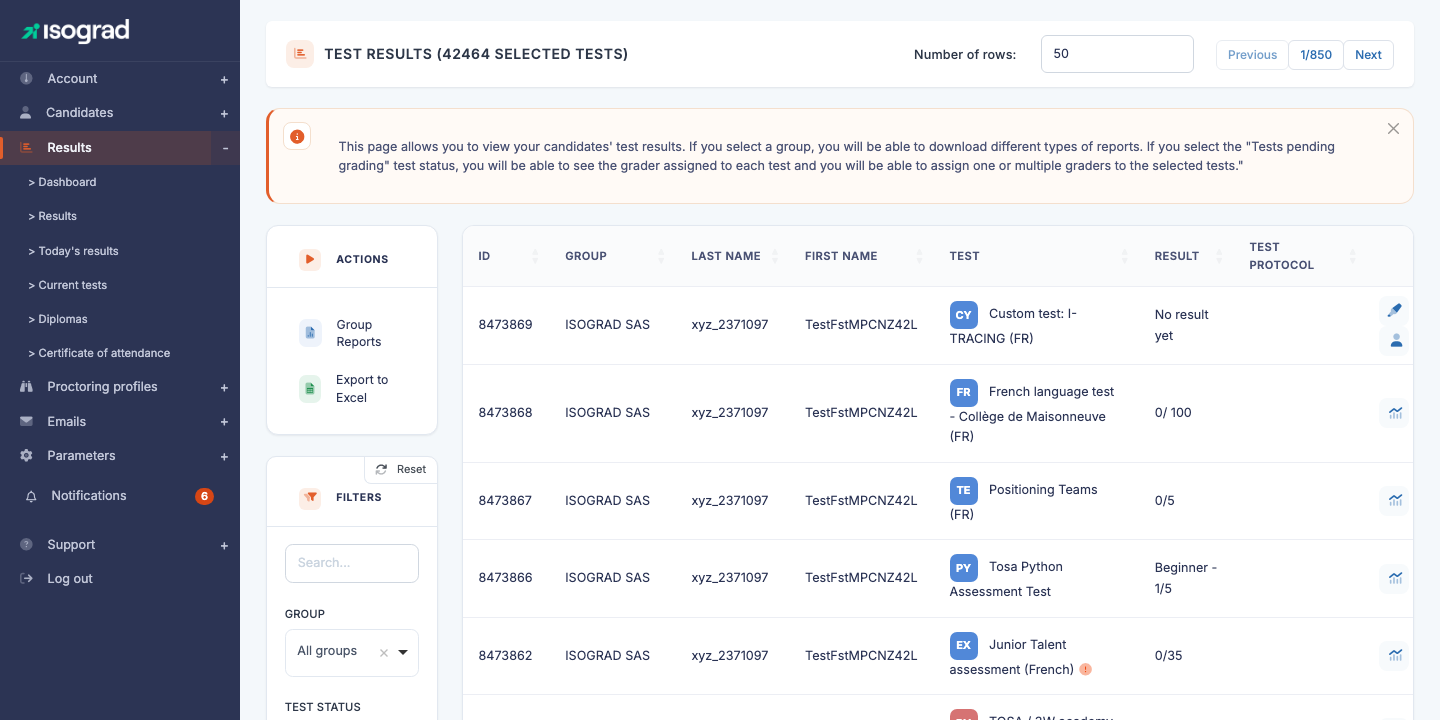
Each row in the table represents one test registration for a candidate. The default columns are:
| Column | Content |
|---|---|
| ID | Internal identifier of the registration. |
| Group | The group the candidate belongs to. |
| Last name / First name | Candidate identity. |
| Test | Subject name and test type (evaluation, certification, positioning). |
| Result | Score obtained (depending on status). If the test is not finished, displays “No result yet”. For tests pending manual grading, this column becomes Grader. |
| Protocol | Indicators related to the sitting: remote proctoring, integrity, etc. (depending on the test options). |
The action buttons at the end of each row depend on the test status (see Row actions below).
💡 Related sub-pages — The Results menu in the sidebar offers several specialized views:
- Dashboard — aggregated metrics (number of completed tests, average duration, score distribution) for a group or a session.
- Today’s results — a filtered version of the table showing only today’s sittings.
- Tests in progress — tests started but not yet completed.
- Certificates — a dedicated view of validated certifications, with diploma downloads.
- Sitting attestation — generation of official test sitting attestations.
Filters and search
The Filters panel to the left of the table lets you target a sub-population of tests:
- Search — free text: candidate’s last name, first name, email address, test name, identifier.
- Test status — restricts the display to a specific status (see Test statuses).
- Test type — evaluation, certification, free, positioning, etc.
- Group — one group at a time. Selecting a group enables the group report actions (bulk report downloads) — see Group reports.
- Session — restricts to tests attached to a given test session.
- Include archived groups (toggle) — by default, candidates belonging to archived groups are hidden. Enable to see them.
The Reset button at the top of the panel returns all filters to their default values.
Test statuses
The Test status filter offers several values that correspond to the stages of a test’s life:
- To be taken — the candidate has been registered but has not yet started the test.
- In progress — the candidate has started the test and has not finished it. The test remains startable as long as it is not marked as completed. A test stopped by an administrator still shows as In progress here; the Stopped by an administrator badge only appears on the candidate’s record (see The planned tests table).
- Completed — the candidate has submitted their answers. The score is calculated and the report is available.
- Pending grading — for subjects containing manually graded questions (essay, code), the test is submitted but requires a grader’s intervention.
- Cancelled — the registration was cancelled before the candidate took the test. The credit is refunded to the account.
💡 “Pending grading” — When you filter on this status, the Score column is replaced by Grader: this is the administrator in charge of the grading. See Grade a test below.
Row actions
The action buttons visible at the end of each row depend on the test status and on your account privileges:
- Analysis (magnifier or details icon) — opens the detailed result analysis page: score per skill, duration per question, difficulty curve.
- Grade (grading icon) — for tests pending grading, opens the question-by-question grading interface.
- Assign to a grader (silhouette icon) — assigns an administrator of your account as the test’s grader.
- Download the certificate (diploma icon) — available for validated certifications: generates the PDF diploma.
Group reports
Once a group is selected in the filter, several bulk actions become available in the Group reports dropdown menu at the top of the table:
- Download the group report — a single PDF summarizing the results of every candidate in the group for a given test (comparison, ranking, overall statistics).
- Download the group progression report — for groups who have taken two tests on the same subject (initial test + final test), generates a report comparing the evolution.
- Download all individual reports — a ZIP containing one PDF per candidate.
- Download all individual progression reports — a ZIP with one progression report per candidate.
- Download all certificates — a ZIP with one diploma per certified candidate in the group.
- Send each candidate their report — triggers sending each candidate’s report by email to their address.
- Send each candidate their certificate — same for validated certifications.
- Download the skills file — a detailed Excel export of skill levels per candidate (useful for HR analyses).
Selecting the test and the period
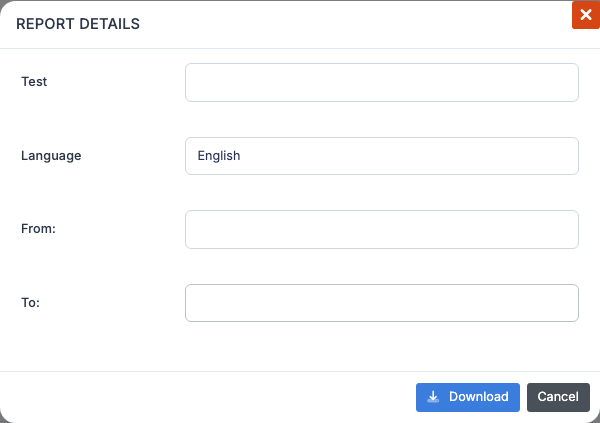
When you click on one of the actions above, a window opens letting you specify:
- The test concerned (if the group has taken several different subjects).
- The language of the report.
- The period (start / end date) — restricts to tests taken within this interval.
Confirm, and the report is generated. For long operations (bulk reports), the platform displays a message “Your request has been registered. You will receive an email within 24 hours.” and the file is sent to you as soon as it is ready.
⚠️ Group required — As long as no group is selected, the Reports button displays a warning prompting you to pick a group and clear the search field. Bulk reports cannot be generated for your entire account in one go.
View result detail
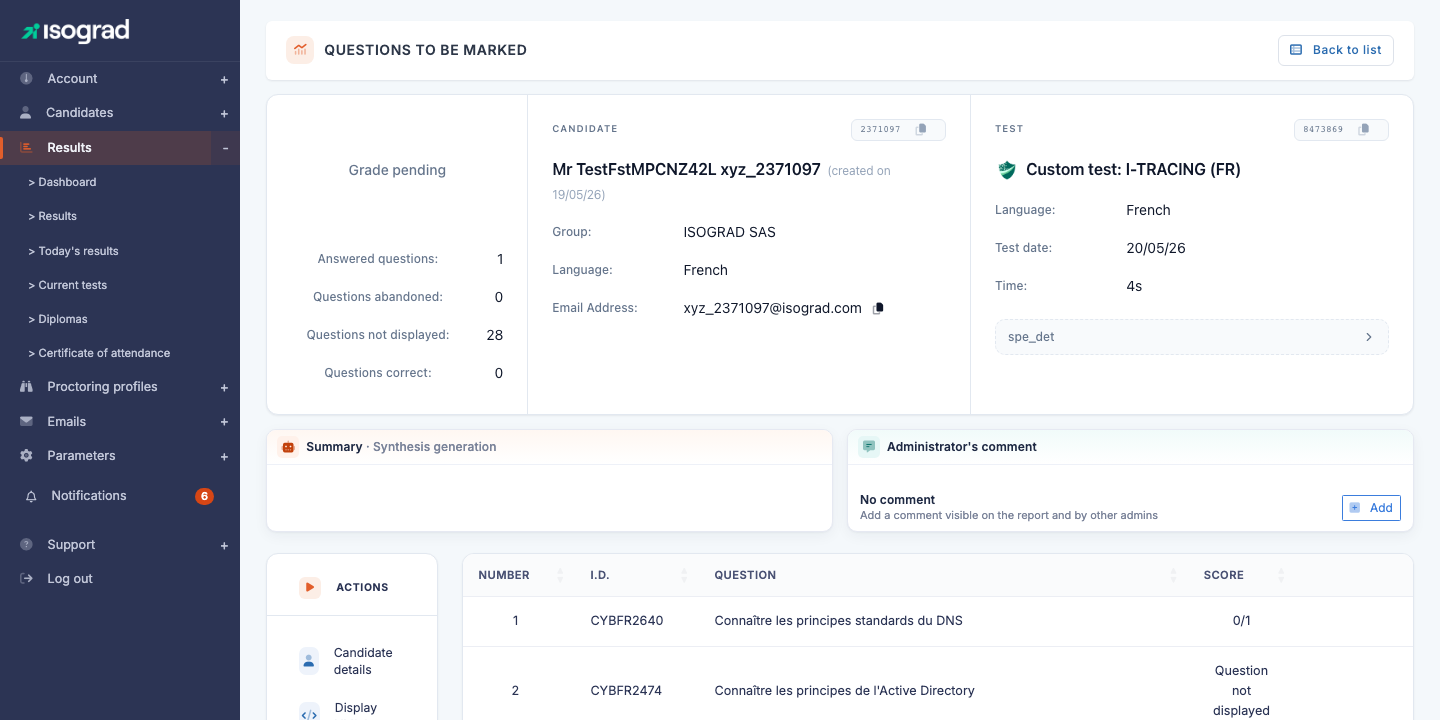
The Analysis button (detail icon) on the row of a completed test opens the analysis page, which displays:
- The overall score and the distribution per skill (chart).
- The total duration and the average duration per question.
- The question-by-question detail: the candidate’s answer, the correct answer, the time spent.
- The option to download the PDF report or the certificate (if applicable).
For adaptive tests (where difficulty adjusts to answers), the analysis also includes the calibration curve tracing the candidate’s progression.
Grade a test
Tests that contain manually graded questions (free-form writing, code to analyse, etc.) land in the Pending grading status once submitted. An administrator must assign a grade before the final result is calculated.
Assign a grader
- Filter the list on the Pending grading status.
- Tick one or more tests to assign.
-
Click on Assign the tests to one or more graders.
💡 If you select several graders, the tests will be distributed evenly between them.
- Confirm. The tests are assigned and the Grader column updates with the name of the assigned administrator.
Grade
- Click on the Grade icon at the end of the row of a test assigned to you.
- The platform opens the grading interface. For each manually graded question, you see the candidate’s answer and a grade field to fill in, along with an optional comment field.
- Confirm each question, then save the whole set. The overall score is recalculated and the test moves to Completed status.
Export to Excel
The Export to Excel button in the action bar generates an .xlsx file listing every result currently filtered on screen. In addition to the visible columns, the export includes extra information such as the external identifier (if configured), the candidate’s email address and the administration comments.
Useful for:
- Producing a quarterly review in flat Excel format.
- Cross-referencing results with other HR or training data.
- Archiving results outside the platform.
💡 Data volume — If your filter covers more than a few hundred rows, the export may take several seconds to generate. The platform triggers the download as soon as the file is ready.
Remote proctoring
A row showing the camera icon corresponds to a test taken under remote proctoring. To review the recordings (captures, video, ID document) and validate or invalidate each sitting, refer to the chapter Test proctoring.