Default options
The Default options page centralises the sitting parameters applied to every test registered on your account. The values defined here are pre-filled in the registration window when registering a candidate to a test — you can still change them on a case-by-case basis, but setting them here saves time and ensures consistency across your entire activity.
Open this page through the Settings → Sitting options menu.
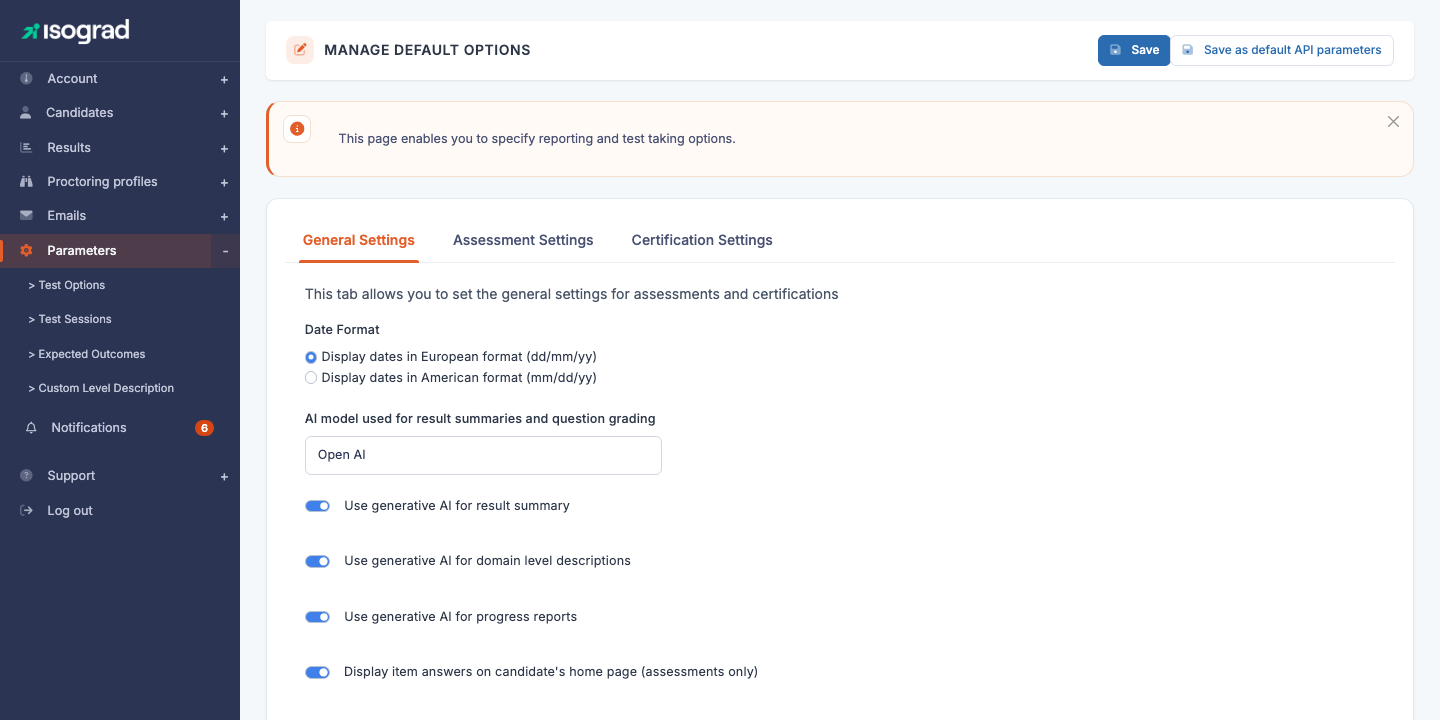
The page is organised into several tabs:
- General settings — settings shared between evaluations and certifications.
- Evaluation settings — specific to evaluation tests.
- Certification settings — specific to certifying sittings (only if your account offers certifications).
- Retake policy — configuration of multiple attempts (depending on your account type).
💡 Save — All modifications are applied by clicking on Save at the top right. The save applies to every tab simultaneously.
💡 As default parameters for the API — The Save as default parameters for the API button (when visible) additionally applies the current values to registrations created through the REST API. Without this button, the parameters apply only to registrations made through the interface.
General settings
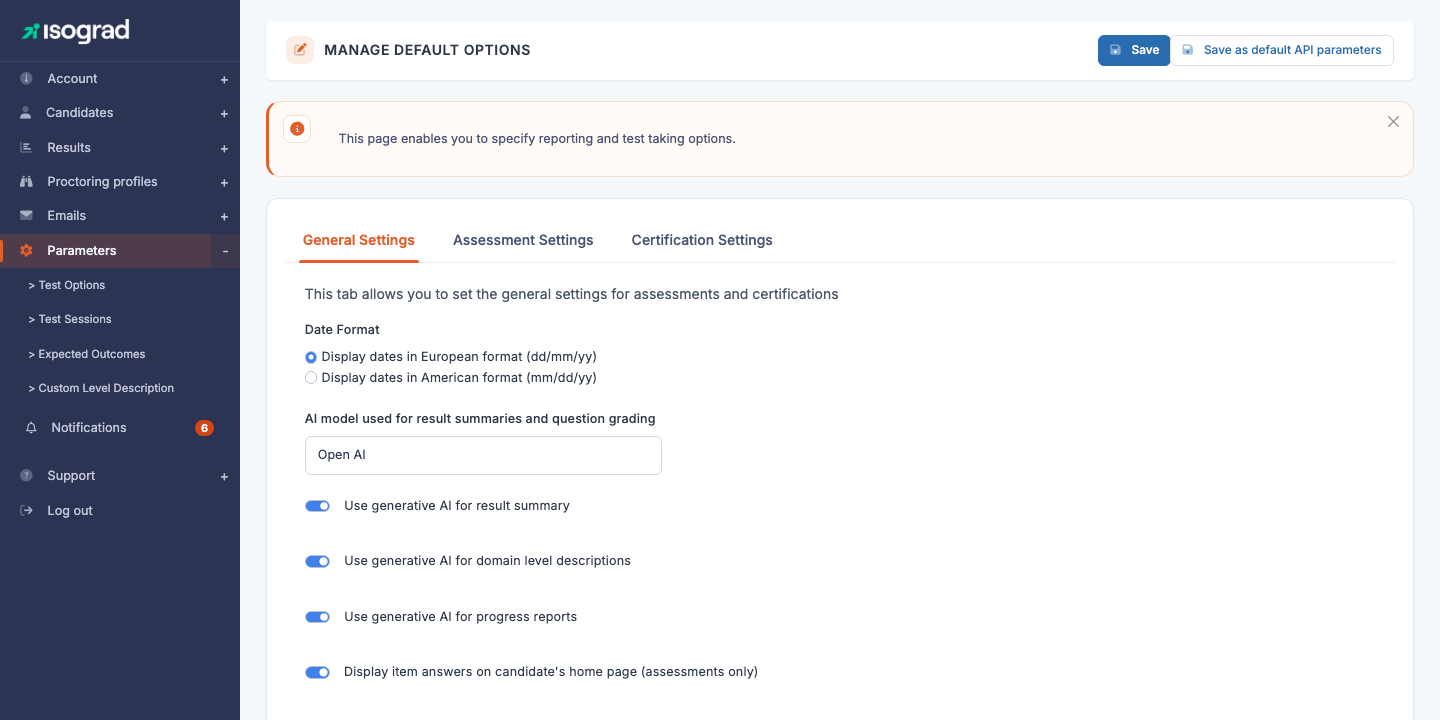
This tab groups the parameters that apply regardless of the test type:
Date format
Choose between:
- Display dates in European format (dd/mm/yy) — default for accounts based in Europe.
- Display dates in American format (mm/dd/yy) — default for accounts based in the United States.
The chosen format applies to every date displayed in the reports and in the candidate interface.
Generative AI options
Depending on the options enabled on your account, you may see settings related to the use of generative AI to enrich the reports:
- AI model used for summaries and question grading — choice of engine (Open AI, etc.) depending on your offer.
- Use a generative AI for the result summary — the platform generates a summary of the result in a few sentences.
- Use a generative AI for the level-per-domain descriptions — explains, per skill domain, what the score means.
- Use a generative AI for the progression reports — for comparative reports between several sessions of the same candidate.
⚠️ Generative AI activation — These options are only editable if your account has the corresponding privileges. If you see the toggles but they are greyed out, contact your Isograd representative to enable the feature.
Answer key for evaluations
- Show the answer key in the candidate area (excluding certifications) — gives the candidate access to the answer key for their responses in their candidate area after an evaluation. This option does not apply to certifications (the answer key of a certification is handled separately, see Certification settings).
Evaluation settings
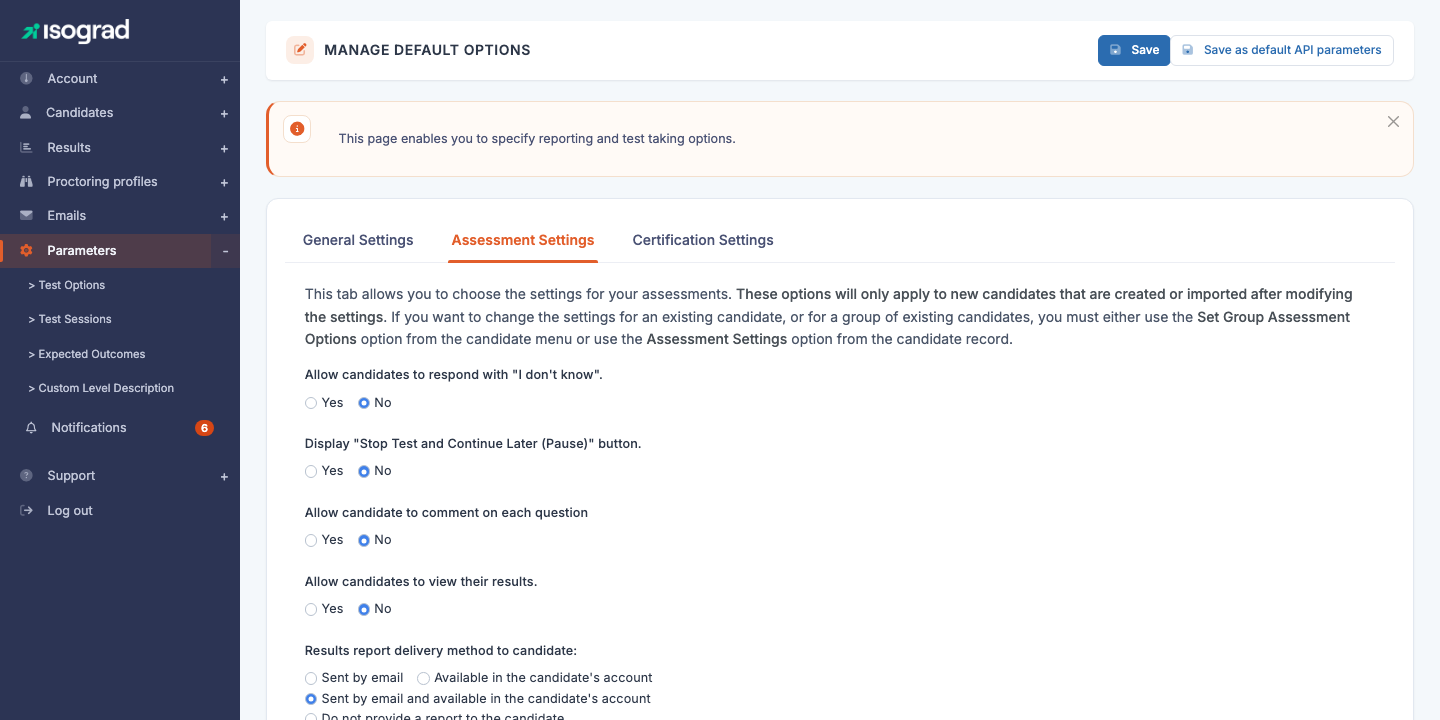
This tab groups the sitting options for evaluation tests.
⚠️ Scope of application — As the help banner at the top of the tab indicates, “these options only apply to candidates you will create in the future”. To change the options of an already existing candidate or group, use the Group actions menu of the Candidates tab, or the Test parameters menu on the candidate’s record.
Sitting options
For each option below, choose Yes or No:
- Allow the candidate to answer “I don’t know” — adds a dedicated button on every question. The answer is counted as incorrect but distinguished from a wrong answer in the report — useful to measure the candidate’s confidence.
- Show the “Pause the test and resume later” button — allows the candidate to pause their test. Choose No to force a sitting in one session.
- Allow the candidate to comment on questions — displays a comment field on every question. The comments can be reviewed afterwards in the report — useful to gather feedback during the rollout phase.
- Allow the candidate to see their result at the end of the test or in their candidate area — choose No if you wish to restrict access to the results to the administrator (for example, for a proctored exam where the result must be officially communicated).
Method of delivering the report to the candidate
Three mutually exclusive choices:
- By email — the report is emailed as soon as the test is complete.
- In their candidate area — the report is only accessible from the logged-in candidate area.
- By email and in their candidate area — combination of both: email + permanent access in the candidate area.
Certification settings
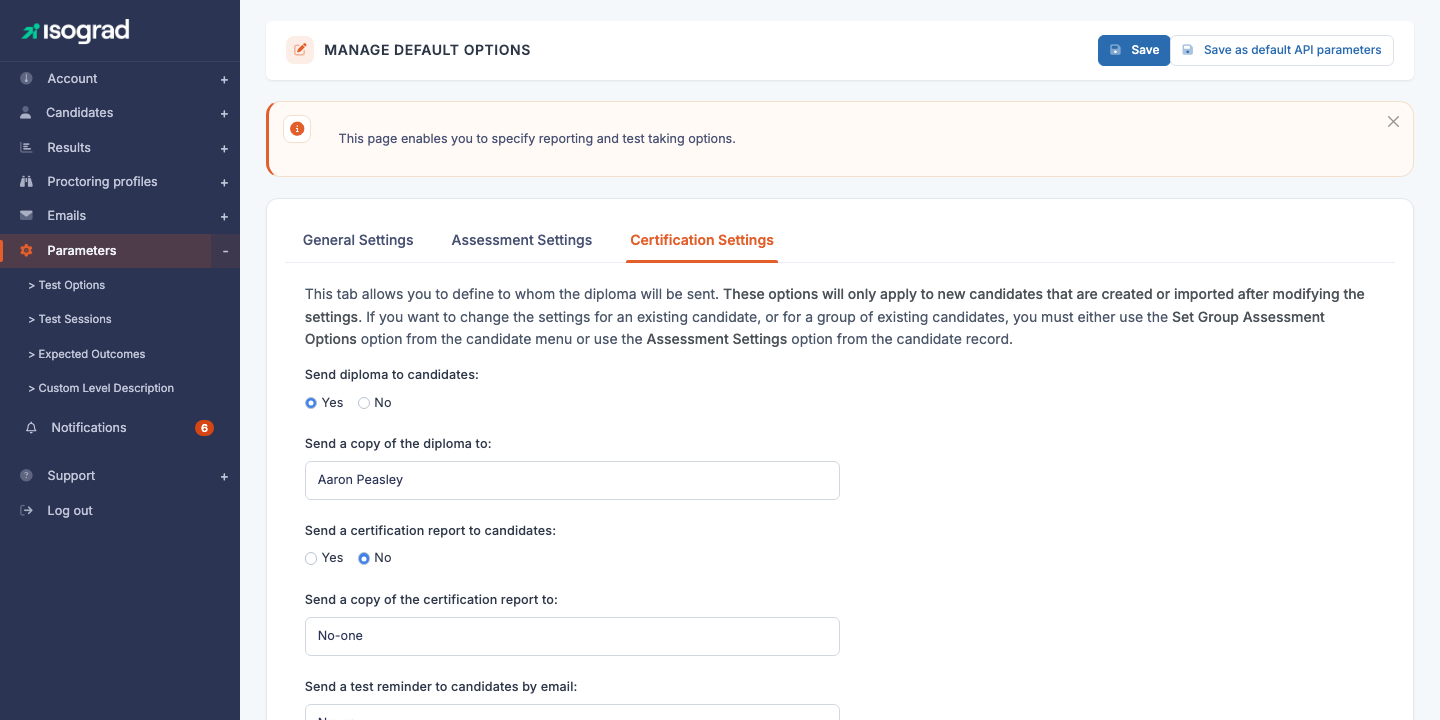
This tab is only visible if your account offers certifications (typically Tosa accounts).
⚠️ Scope of application — As for the Evaluation tab, these options only apply to candidates you will create in the future.
Certificate sending
- Send the certificate to the candidate (Yes/No) — enables automatic sending of the PDF diploma to the candidate as soon as the certification is validated.
- Send a copy of the certificate to — email address of an administrator who will receive a copy of every issued diploma (default “Nobody”, i.e. no copy).
Certification report sending
- Send the certification report to the candidate (Yes/No) — distinct from the certificate: the certification report is more detailed (skills, comparison to expected levels).
- Send a copy of the certification report to — administrator address for the report copy.
Automatic reminders
- Send a reminder email to the candidate — enables automatic sending of reminder emails for candidates who have not started their certification. The frequency of the reminders is configured separately on the candidate’s record.
Retake policy
The Retake policy tab (visible depending on the account type) configures the rules for multiple attempts on certifications:
- Minimum score per subject — score below which a candidate must retake. Above, the subject is validated.
- Maximum number of attempts — how many times a candidate can retake a subject.
- Retake delay (days) — minimum time between two attempts on the same subject.
💡 Best practice — Setting a non-zero delay (for example 7 days) between two attempts prevents the candidate from “burning” their attempts by answering randomly right after failing. The delay leaves time to review.